Clean up audio in video
How do I clean up audio in a video?
Clean up audio in video for free with Veena: drop in the clip, pull its sound onto its own track, take out the noise, balance the voice against the instrument, master it, and export the same video with sound that matches the performance.
Veena is an AI DAW with a personal music producer built in. Describe the song you want and CoProducer builds it with you — beats, chords, melody, arrangement and mix — as real tracks you can edit, mix and export. Free, in your browser.
That matters for video because most music videos are recorded the hard way: a phone propped on a music stand, a single mic catching the voice and the guitar together, a room that hums or rings. The performance is the part you can't fake, and it is already there. What the clip needs is the work a producer does after the take: separate what got recorded together, clean each part, mix it, master it. Veena puts that whole studio and a producer who knows how to use it in one browser tab.
How to clean up audio in video, step by step
- Import the video. Drag the file onto the arrangement or press Upload in the transport. Veena opens MP4, M4V, MOV, WebM, MKV and AVI, and the picture sits in its own clip on the timeline.
- Separate the audio. Right-click the video clip and choose Separate Audio. The sound becomes an ordinary audio clip on its own track, ready to edit and process.
- Split it into stems when parts were recorded together. Stop playback, right-click the audio and choose Separate into Stems. Vocals, drums, bass and other land on four new tracks, time-aligned with the original, which Veena mutes so you can compare.
- Open Mix & Master and name the parts. On Parts, tag the voice as Lead vocal and each instrument by role. Set importance so the part the video is about sits in front.
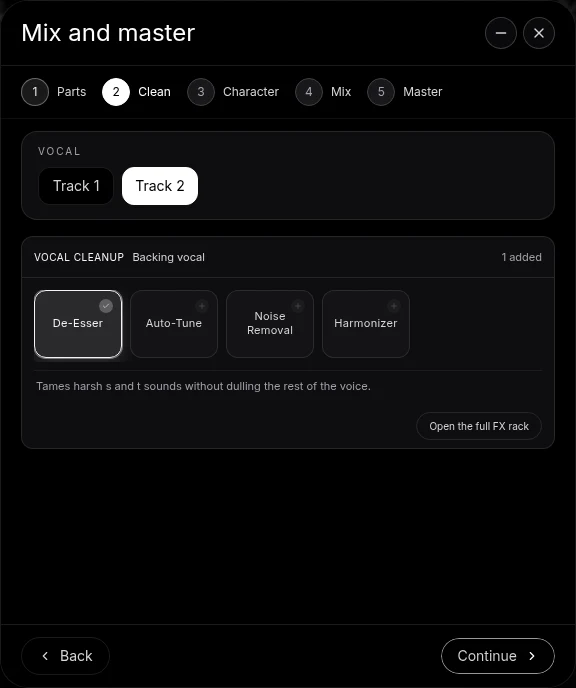
- Clean the vocal. On Clean, add Noise Removal for background noise, De-Esser for sharp S and T sounds, and Auto-Tune if you want gentle pitch control.
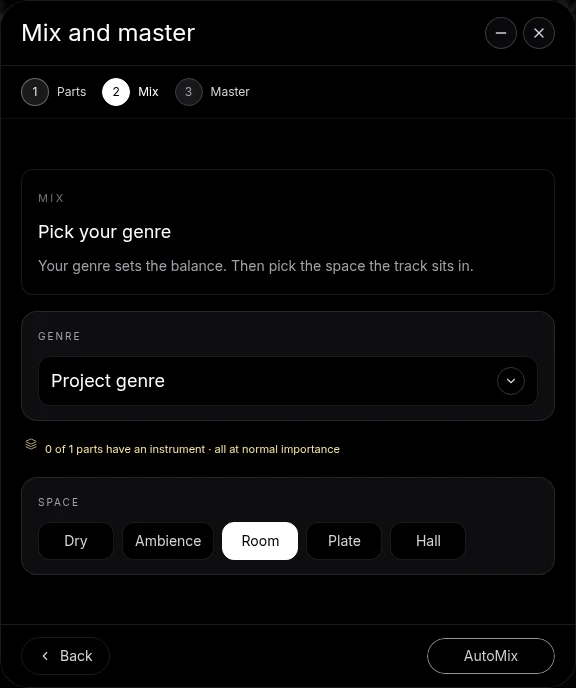
- Mix it. On Mix, choose a Genre and a Space (Dry, Ambience, Room, Plate or Hall), then press AutoMix. Veena sets levels, pan, effects and the shared space on your real tracks.
- Master it. Pause playback and press Master project. Veena measures the mix and adds Match EQ and Limiter to the master bus.
- Export the video. Open Export and choose MP4. The picture leaves with the cleaned, mixed and mastered audio.
What each problem needs, and where it lives in Veena
| What you hear in the clip | What fixes it | Where in Veena |
|---|---|---|
| Fan, traffic or air-conditioning hiss | Noise Removal | Clean stage, or any track's FX rack |
| Low rumble and handling thumps | A high-pass Filter or a low cut on the 8-Band EQ | Track FX |
| Harsh S and T sounds on the voice | De-Esser | Clean stage, or the vocal's FX rack |
| Voice buried under the guitar or piano | Stem separation, then separate faders | Right-click, Separate into Stems |
| Uneven loud and quiet moments | Compressor | Track FX |
| A dry, boxy room | Reverb, or a Space choice in Mix | Track FX, or Mix & Master |
| Too quiet next to other videos | Master project: Match EQ and Limiter | Mix & Master, Master FX |
| Sound only in one ear | Utility: Mono and Balance | Track FX |
Every row is an ordinary effect card on a real track. Bypass any card to hear the before and after, drag the cards to change their order, or open the knobs and set them by ear.
Guides for every kind of music video
Each guide below takes one kind of clip from rough to finished, with the exact request to give CoProducer at the end.
Clean and fix the sound
- How to clean raw video audio: the whole job, from the phone clip to the exported MP4.
- Remove background noise from video: hiss, fans, traffic and room tone.
- Improve phone video audio: what a phone mic does to music, and how to undo it.
- Fix echo in video audio: tame a ringing room.
- Remove hum from video audio: mains hum and buzzing amps.
- De-ess vocals in a video: soften sharp S and T sounds.
- Extract audio from video to mix: get the sound onto its own track.
- Sync audio and video for music covers: line a better take up with the picture.
- Master audio for YouTube: loud, clean and consistent.
Covers and playthroughs
- Clean audio for playthrough videos: the method for any instrument.
- Mix a guitar playthrough video
- Mix a bass playthrough video
- Mix a drum cover video
- Mix a piano cover video
- Mix a vocal cover video
- Make a cover video sound professional
- Make acoustic cover videos sound better
- Balance vocals and guitar recorded on one mic
- Make a backing track for a cover video
Platforms and situations
- Clean audio for Instagram Reels
- Clean audio for TikTok music videos
- Clean live performance video audio
- Mix a band rehearsal video
- Clean audio for music lesson videos
Let CoProducer run the mix
Everything above works by hand, and every step also works as a sentence. CoProducer, the producer inside Veena, reaches the same Mix & Master flow and the same effect cards. Tell it what the video should sound like, in the words you would use with an engineer: "the vocal clear and in front, less room, the guitar warm behind it, loud enough for YouTube." It tags the parts, adds the cleanup, runs AutoMix and masters the song, and every change lands on cards you can open and adjust.
A smaller follow-up changes one thing without rebuilding the rest: "a little less reverb on the voice", "bring the bass up", "make the master a touch louder". CoProducer can also split the recording into stems for you, and build a backing track under a solo performance when a cover wants a band behind it.
Export the video with the clean sound
When the mix is right, open Export from your avatar at the bottom of the left sidebar. MP4 appears whenever the project contains video and renders the picture with your mixed and mastered audio, ready to upload. Need the sound on its own for another editor? Export a 24-bit/48 kHz WAV or a 320 kbps MP3 of the full mix, or every track as stems in one zip. Normalize audio for export brings the loudest peak to -0.1 dB.
Exports are free on every plan, with no cap on how often and no watermark on any file. You own what you make, and the project stays saved, so a second edit next week starts from the same tracks.
Why do this in a music studio, not a video editor
A video editor treats the soundtrack as one strip of audio. A music video is several instruments, a voice and a room, and the fix lives in pulling those apart: lifting the vocal without lifting the strumming, cleaning the voice without dulling the cymbals, mastering the song like a release. Veena is a full DAW, so the tools are the ones engineers use on records: stem separation, a de-esser, noise removal, EQ, compression, reverb, AutoMix and a mastering chain, plus your own VST and AU plug-ins through Veena Bridge. The AI mixing assistant and AI mastering pages cover those two steps in depth, and the free stem splitter covers separation.
Free, in your browser, on any laptop, and on your phone with Pocket Studio: the best place to clean up audio in video is a studio with a producer already in it.
The prompt to paste into CoProducer
Separate the audio from your clip first, then give CoProducer this request:
"Clean up the audio from my cover video: remove the background noise and soften the sharp S sounds on the lead vocal, keep the acoustic guitar warm and centred behind it, add a short room around both, then master it so it sits loud and clean on YouTube and Reels."
Related reading: video in Veena, clean vocals in Veena, mix and master in Veena, export formats.
Try this in Veena
Clean up the audio from my cover video: remove the background noise and soften the sharp S sounds on the lead vocal, keep the acoustic guitar warm and centred behind it, add a short room around both, then master it so it sits loud and clean on YouTube and Reels.
Frequently asked questions
How do I clean up audio in a video for free?
Import the video into Veena, right-click it and choose Separate Audio, then open Mix & Master. Add Noise Removal and De-Esser on the Clean stage, press AutoMix and then Master project. Export an MP4 and the picture leaves with the cleaned sound. Every step runs free in your browser, with no cap on exports and no watermark.
Can Veena remove background noise from a video?
Yes. After Separate Audio, Veena puts the video's sound on its own track. Add Noise Removal from that track's FX rack, or from the Clean stage of Mix & Master on a vocal, and compare it switched on and off while the clip plays. A Filter or 8-Band EQ cut takes out low rumble, and the export carries the cleaned audio.
Can I balance the voice and the instrument when both were on one mic?
Yes. Right-click the extracted audio in Veena and choose Separate into Stems. The voice lands on the vocals stem and a guitar or piano lands on the other stem, time-aligned with the original. Each now has its own fader and effects, so you can lift the vocal, tame the strumming and mix them like two microphones.
What video formats does Veena open?
Veena opens MP4, M4V, MOV, WebM, MKV and AVI. Drag the file onto the arrangement or press Upload in the transport. The picture sits in its own clip on the timeline, and Separate Audio puts the sound on an ordinary audio track you can edit, split into stems, clean, mix, master and export with the video.
Can CoProducer clean up my video's audio for me?
Yes. CoProducer reaches the same Mix & Master workflow and effects you use by hand in Veena. Describe the result in plain English, such as a clear vocal, a quieter room and a loud, clean master, and it tags the parts, adds the cleanup, runs the mix and masters the song. Every change lands on editable effect cards.
How do I export the cleaned video from Veena?
Open Export from your avatar at the bottom of the left sidebar and choose MP4, which appears whenever the project holds a video. Veena renders the picture with your mixed and mastered audio. For a separate audio file, export a 24-bit/48 kHz WAV or a 320 kbps MP3 instead. Exports are free, with no cap and no watermark.
Meet your personal music producer
Free, in your browser. Describe the song you want and CoProducer builds it with you.
Make music free