How to improve phone video audio
Improve phone video audio in Veena: import the clip, separate its sound, remove noise, EQ the boxiness, balance voice and instrument, and export an MP4.
To improve phone video audio, treat the sound as a recording you can work on, not a fixed part of the clip. In Veena you import the phone video, pull its sound onto a track, remove the room noise, cut the rumble and boxiness, balance the voice against the instrument and export an MP4 that sounds like a finished performance.
Veena is an AI DAW with a personal music producer built in. Describe the song you want and CoProducer builds it with you — beats, chords, melody, arrangement and mix — as real tracks you can edit, mix and export. Free, in your browser.
A phone is the camera most musicians actually own, and its picture is excellent. Its audio is the weak link, for reasons that are predictable and therefore fixable. This page covers those reasons, the fix for each in Veena, and how to film the next one so there is less to fix. It sits inside the wider guide to clean up audio in a video.
Why phone video audio sounds the way it does
Four things happen between your instrument and the phone's file:
- Distance. The phone sits a metre or two away, so it hears the room as loudly as the source. That reads as hollow, roomy sound.
- Automatic gain. The phone turns its own input up in quiet passages and down in loud ones. The verse ends up noisier than it should be, and the chorus loses its lift.
- A small microphone. Phone mics favour the middle of the spectrum. The low end of a guitar or a voice gets thin, and handling noise and table thumps arrive as rumble.
- Compression in the file. The phone saves the audio compressed alongside the video, which softens the top end.
None of that is a reason to reshoot a good performance. Each one has a specific answer.
How to improve phone video audio in Veena, step by step
- Get the clip onto your laptop. AirDrop, a cable or cloud storage all work. Keep the original file rather than a messaging-app copy, which is compressed again.
- Import it. Drag the file onto the Veena timeline or press Upload. Veena reads MP4, M4V, MOV, WebM, MKV and AVI.
- Right-click the video clip and choose Separate Audio. The sound lands on its own track as an editable recording.
- Split the voice from the instrument. Right-click the new audio clip and choose Separate into Stems. Vocals, drums, bass and other arrive on new tracks, lined up with the original, which Veena mutes so you can compare.
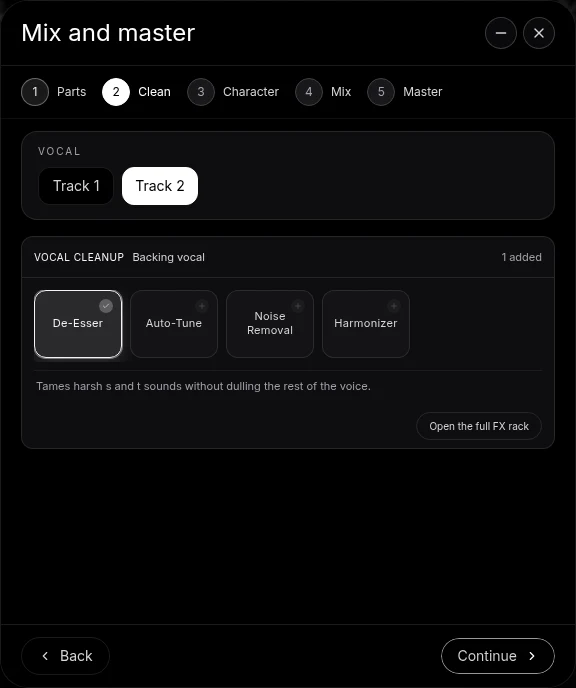
- Clean the vocal. Open Mix & Master, tag the vocal stem as Lead vocal on Parts and continue to Clean. Add Noise Removal for the room and De-Esser if the phone made the S sounds sharp.
- Cut the rumble. On each track's FX chain, add Filter as a high-pass below the lowest note the part plays. Footsteps, table knocks and air conditioning live down there.
- Take out the boxiness. Add 8-Band EQ and make a gentle cut in the low mids, around 200 to 500 Hz, where small rooms build up. Sweep a band through that range and cut where the sound gets clearer.
- Even out the gain riding. Add a Compressor with a moderate ratio and a slow-ish attack so the level jumps the phone introduced are smoothed without flattening the performance.
- Mix and master. Back in Mix & Master, choose a Genre and a short Space, press AutoMix, pause and press Master project.
- Export the MP4. Open Export, choose MP4 and export the video with its new audio.
Keep the room you can see
The picture shows a bedroom, a kitchen or a stage. If the audio sounds like a dead vocal booth, viewers notice the mismatch. After Noise Removal, add back a little space on purpose: in the Mix stage, choose Room or Ambience rather than Hall. A small, controlled room sounds like the one in the shot, minus the clutter.
Hand the whole job to CoProducer
If you would rather describe the result than set each card, drag the audio into the CoProducer panel and ask for it in producer terms: the genre, the tempo, which part leads, and how much space you want. CoProducer uses the same Mix & Master controls and the same track effects, so every change it makes is a card you can open and adjust. The AI mixing assistant page shows that workflow in the full studio.
Film the next one so there is less to fix
- Get the phone closer. Halving the distance to the source does more for clarity than any effect.
- Pick the quietest room with soft things in it. Curtains, a bed and a rug absorb the reflections that make phone audio hollow.
- Turn on airplane mode. It stops notifications and the buzz some phones put into nearby audio.
- Record the audio separately when you can. A second phone or a USB mic placed close to the source, synced later in Veena, beats any camera mic. The method is in how to sync audio and video for music covers.
Where to go next
If the problem is a steady background sound, read how to remove background noise from video. If it is a mains buzz from an amp, see how to remove hum from video audio. When the sound is clean, finish with how to master audio for YouTube.
The prompt to paste into CoProducer
Open the studio, import your phone video, separate its audio and split it into stems, then paste this into the CoProducer panel with your own genre, tempo and key:
Clean and mix this phone video of a singer-songwriter performance at 84 BPM in D major: remove the room noise from the vocal, high-pass the rumble, take the boxiness out of the guitar, keep the vocal forward and centred with a short Room, then master it warm and even so the quiet verse and the loud chorus sit at one volume.
Related reading: clean up audio in a video · remove background noise from video · sync audio and video for music covers · master audio for YouTube
Try this in Veena
Clean and mix this phone video of a singer-songwriter performance at 84 BPM in D major: remove the room noise from the vocal, high-pass the rumble, take the boxiness out of the guitar, keep the vocal forward and centred with a short Room, then master it warm and even so the quiet verse and the loud chorus sit at one volume.
Frequently asked questions
How do I improve the audio in a phone video?
Veena is an AI DAW with a personal music producer built in. Describe the song you want and CoProducer builds it with you — beats, chords, melody, arrangement and mix — as real tracks you can edit, mix and export. Free, in your browser. Import the phone clip, choose Separate Audio, clean and mix the sound, master it and export an MP4.
Why does audio recorded on a phone sound bad?
Phone microphones sit far from the source, pick up the whole room and ride their own gain, so loud moments get turned down and quiet ones turned up. In Veena you answer each one: Noise Removal for the room, a high-pass Filter and 8-Band EQ for rumble and boxiness, a Compressor for the uneven level, and Master project for the final polish.
Can Veena separate the voice and guitar in a phone video?
Yes. After Separate Audio, right-click the recording in Veena and choose Separate into Stems. You get vocals, drums, bass and other on new tracks, time-aligned with the original. A guitar lands in the other stem, so the voice and the guitar get their own faders and effects even though one phone microphone recorded both.
Does Veena read iPhone and Android video files?
Yes. Veena imports MP4, M4V, MOV, WebM, MKV and AVI, which covers the files iPhones and Android phones save. Move the clip to your laptop, drag it onto the Veena timeline or press Upload, and the video sits on its own clip beside the tracks you mix. Export brings back an MP4 with the picture and the improved audio.
Is it free to clean up phone video audio in Veena?
Yes. Importing video, Separate Audio, stem separation from the right-click menu, the stock effects, Mix & Master and MP4 export all work on Veena's free plan, with no watermark and no cap on exports. Veena Pro, at $20 a month, removes the daily CoProducer request cap and unlocks the premium models.
Meet your personal music producer
Free, in your browser. Describe the song you want and CoProducer builds it with you.
Make music free