How to master audio for YouTube videos
Master audio for YouTube in Veena: import your video, mix it with AutoMix, add Match EQ and a Limiter with Master project, then export the MP4. Free.
To master audio for YouTube, you need three things in one place: the video, the mix and a master chain you can hear against the picture. Veena puts all three in one browser tab. Import the video, pull its sound onto a track, mix it with AutoMix, press Master project for Match EQ and a Limiter, and export an MP4 with the finished audio.
Veena is an AI DAW with a personal music producer built in. Describe the song you want and CoProducer builds it with you — beats, chords, melody, arrangement and mix — as real tracks you can edit, mix and export. Free, in your browser.
That matters for a music video because the master is the last thing a viewer hears and the first thing they judge. A cover, a playthrough or an original performance with a thin, quiet or harsh master reads as an amateur upload in the first five seconds, whatever the playing is like. This guide is part of how to clean up audio in a video, and it walks the whole job in Veena.
What mastering does for a YouTube video
Mixing balances the parts against each other: the voice against the guitar, the kick against the bass. Mastering treats the finished mix as one piece of audio and gives it a consistent tone and level, so it sounds finished on phone speakers, laptop speakers, earbuds and a TV.
For YouTube, three jobs matter most:
- Tone. A phone or camera recording tends to sound boxy, thin or bright. A mastering EQ moves the overall balance toward how finished records in the genre sound.
- Level. A limiter catches the peaks so the whole performance can sit at a confident, even volume.
- Consistency. The quiet verse and the loud chorus should both be audible at one volume setting, without the chorus jumping out.
How to master audio for YouTube, step by step
- Import the video. Press Upload in the transport or drag the file onto the arrangement. Veena reads MP4, M4V, MOV, WebM, MKV and AVI, so a phone clip or a camera file goes straight in.
- Separate the audio. Right-click the video clip and choose Separate Audio. The sound lands on its own track as a recording you can edit, process and mix.
- Split it into stems if the performance has several parts. Right-click the audio clip and choose Separate into Stems. Veena gives you vocals, drums, bass and other on new tracks, lined up with the original, so a voice and an instrument recorded on one microphone get their own faders.
- Open Mix & Master and name the parts. On Parts, set each track's role: lead vocal, drums, bass, keys and so on. Vocal parts add the Clean stage, with De-Esser, Auto-Tune, Noise Removal and Harmonizer.
- Choose Genre and Space, then press AutoMix. Space offers Dry, Ambience, Room, Plate and Hall. For a performance filmed in a room, Dry or Room keeps the added space believable against what the viewer sees.
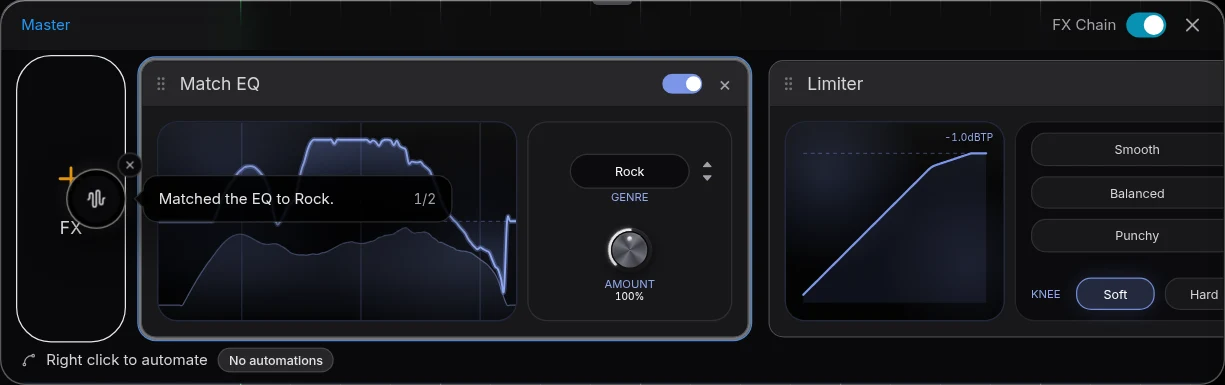
- Pause, then press Master project. Veena measures the mix and installs Match EQ followed by Limiter at the end of the master FX chain.
- Compare and adjust. Open Master FX and flip the FX Chain switch to hear the processed and unprocessed bus. Try the Limiter's Smooth, Balanced and Punchy presets on the loudest section.
- Export the MP4. Click your avatar, choose Export, pick MP4 and export. The picture and your mastered audio arrive in one file, ready to upload.
Set the limiter by ear, not by the meter
The temptation with a YouTube master is to push it as loud as it will go. Resist it. A viewer sets their volume once, and a master squeezed hard against the ceiling loses what makes a performance exciting: the snap of the snare, the attack of a strummed chord, the breath before a vocal line.
Use this check in Veena:
- Loop the loudest chorus with the ruler's loop.
- Switch the master FX Chain off and on, matching the listening level by ear.
- If the processed version sounds louder but flatter, lower the Limiter's Drive or move from Punchy to Balanced.
- Play the quietest verse. It should still sound present without touching the volume knob.
Check the master on the speakers your viewers use
Most YouTube music is heard on phone speakers and earbuds first. Before you export, play the chorus on your phone and on a pair of earbuds. Two things to listen for:
- The vocal on a phone speaker. If the words get lost, the mix needs a little more vocal before the master, not more master. Return to the track mix, raise the lead, then press Master project again.
- The low end on earbuds. If the bass booms or vanishes, fix the bass track's level or EQ, not the master.
A master polishes a balanced mix. When the master sounds wrong, the fix almost always lives in the mix underneath it.
Keep a clean version too
Export twice: once with the master FX Chain on for the upload, and once with it off as a reference WAV. Keep the Veena project as well. If a viewer comment or a second listen tells you the chorus is harsh, you change one card and export again, rather than starting over. For stems and formats, see export and ownership, and for the mastering card itself, the AI mastering page.
Related jobs before the master
Mastering finishes a clean recording; it does not replace the cleanup. If the video was shot on a phone, start with how to improve phone video audio. If the room rang, read how to fix echo in video audio. If you are posting a cover, the full path is in how to make a cover video sound professional.
The prompt to paste into CoProducer
Open the studio, import your video, separate its audio, and paste this into the CoProducer panel, changing the genre, tempo and key to match your performance:
Mix and master this acoustic pop performance video at 92 BPM in G major for YouTube: lead vocal forward and centred, acoustic guitar just behind it and a little wide, a short Room around both, then master it warm and full with a Balanced limiter so the chorus lifts without squashing the strums.
Related reading: clean up audio in a video · improve phone video audio · make a cover video sound professional · mix a vocal cover video
Try this in Veena
Mix and master this acoustic pop performance video at 92 BPM in G major for YouTube: lead vocal forward and centred, acoustic guitar just behind it and a little wide, a short Room around both, then master it warm and full with a Balanced limiter so the chorus lifts without squashing the strums.
Frequently asked questions
How do I master audio for YouTube?
Veena is an AI DAW with a personal music producer built in. Describe the song you want and CoProducer builds it with you — beats, chords, melody, arrangement and mix — as real tracks you can edit, mix and export. Free, in your browser. Import your video, right-click it and choose Separate Audio, mix it with AutoMix, press Master project, then export an MP4.
What does Master project do in Veena?
Master project in Veena measures your mix and places two editable cards at the end of the master FX chain: Match EQ, which shapes the song toward the chosen genre's tonal curve, and a Limiter with Smooth, Balanced and Punchy presets. Pause playback before you press it. Press it again after a big change and Veena updates the same pair in place.
How loud should a YouTube music video master be?
Loud enough to sound full at the volume a viewer already has set, and no louder. In Veena, start the Limiter on Balanced, loop the loudest chorus and compare it against the quietest verse. If the drums or the strum attack go flat, back off Drive. A master that keeps its punch holds attention longer than one pushed to the ceiling.
Can I export the mastered audio with the video from Veena?
Yes. When the project holds a video clip, Veena offers MP4 in Export, and the file carries the picture with your mixed and mastered audio. The master FX chain you hear in playback is the one in the export. Veena puts no watermark on any export and no cap on how many you make.
Can CoProducer master my YouTube video for me?
Yes. Ask CoProducer in plain English, for example: master this performance for YouTube, warm and full, without squashing the chorus. CoProducer uses the same Mix & Master controls you see in Veena, so the result lands as editable Match EQ and Limiter cards on the master bus that you can adjust by hand afterwards.
Meet your personal music producer
Free, in your browser. Describe the song you want and CoProducer builds it with you.
Make music free