How to De-Ess Vocals in a Video
How to de-ess vocals in a video: separate the voice in Veena, add De-Esser on the Clean stage, tune it by ear and export an MP4 with smooth S sounds. Free.
How do I de-ess vocals in a video?
To de-ess vocals in a video, import the clip into Veena, separate its audio, split the voice onto its own stem, add De-Esser on the Clean stage of Mix & Master, tune it by ear on the harshest lines and export an MP4. The S sounds stop stinging on earbuds and the voice keeps its brightness. Free, in your browser.
Veena is an AI DAW with a personal music producer built in. Describe the song you want and CoProducer builds it with you — beats, chords, melody, arrangement and mix — as real tracks you can edit, mix and export. Free, in your browser.
Sibilance is the hiss in "yes", "this" and "she": a burst of high-frequency energy every time the tongue shapes air. Sung close to a phone, those bursts come out sharper than any other sound in the recording, and every listener on earbuds hears them as a small stab. It is the single most common tell of an unmixed vocal video, and one of the easiest to fix once the voice sits on its own track.
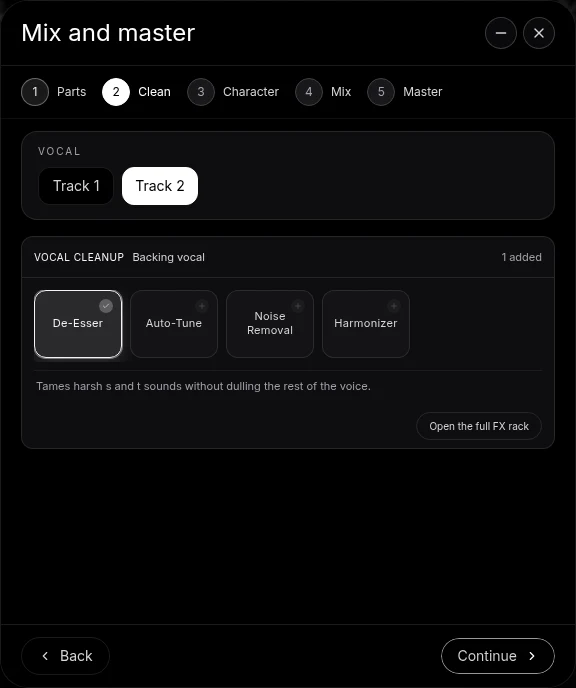
What a de-esser does, and why the voice needs its own track
A de-esser listens for the band of frequencies where sibilance lives, roughly 5 to 9 kHz on most voices, and turns the signal down only when that band spikes. Between consonants it does nothing, so the vowels keep their air and the voice keeps its character. That is what makes it better than simply cutting the treble with an EQ, which would dull every syllable.
It works best on a voice alone. On a full mix, the de-esser hears cymbals, strings and a bright guitar in the same band and turns them down too. Splitting the video's audio into stems first gives the de-esser only the voice to listen to.
De-ess vocals in a video in Veena, step by step
- Import the video. Drag it onto the arrangement or press Upload. Veena reads MP4, M4V, MOV, WebM, MKV and AVI.
- Separate Audio. Right-click the video clip and choose Separate Audio. The sound becomes an editable audio clip under the picture.
- Split the voice out. Stop playback, right-click the audio clip and choose Separate into Stems. Four time-aligned tracks appear: vocals, drums, bass and other. The voice is on the vocals stem. For a spoken or a cappella video, the vocals stem holds almost everything you need.
- Open Mix & Master and tag the vocal. On Parts, tag the vocals stem as Lead vocal, or Backing vocal for a harmony part, and press Continue to reach Clean.
- Add De-Esser. On Clean, choose De-Esser for the vocal. With several vocals, use the Vocal choice above the rack to treat each one in turn.
- Tune it by ear. Press Open the full FX rack to reach the De-Esser card. Loop the line with the worst S sounds by dragging across the ruler, and adjust the controls while it plays. Stop when the S sounds sit level with the rest of the word, before the voice starts to lisp.
- Compare. Switch the De-Esser card off and on while the music plays. The S sounds should soften; the voice should not sound duller or further away.
- Mix and master. Continue through Character and Mix, press AutoMix, then pause and press Master project. Mastering raises the overall level, so check the sibilance once more afterwards.
- Export the MP4. Avatar, Export, MP4. The video carries the de-essed, mastered mix.
The clean up audio in a video page covers every other step of a video cleanup, and the AI mixing assistant page covers the mixing tools in depth.
Getting the amount right
Listen on earbuds. Sibilance that sounds fine on laptop speakers can sting on earbuds, and earbuds are where most video audio is heard. Make the final call there.
Listen in context, not solo. A de-essed vocal soloed can sound slightly lispy and still sit perfectly in the mix. Judge it with the music playing.
Watch for over-de-essing. Too much turns "sister" into "thithter". If the S sounds start to disappear, back the De-Esser off until they are present but smooth.
De-ess before brightening. If you add top end to the voice with the 8-Band EQ or a Character, check the De-Esser again afterwards, because the brighter voice gives it more to catch.
One harsh word, not the whole song
Sometimes one line is the problem: a held "yes" or a run of S sounds in a chorus. Press C for split mode and cut that word out of the vocal stem into its own clip. Lower its clip volume a little, or drag it to a second vocal track that carries a stronger De-Esser, and leave the rest of the performance on the lighter setting.
The rest of the vocal cleanup
De-essing usually travels with the other Clean-stage tools: Noise Removal for background hiss, Auto-Tune for a drifting note, Harmonizer for extra voices. The mix a vocal cover video guide covers the whole vocal, and the clean audio for TikTok music videos guide covers the short-form version, where a looping clip repeats every S sound. The clean vocals in Veena help page shows the Clean stage button by button.
Hand it to CoProducer
Describe what you hear and what you want instead: the genre, the tempo, what sits behind the voice and how bright it should stay. CoProducer adds and tunes the De-Esser and runs the rest of the mix, and every card it sets stays editable.
Paste this into CoProducer:
"De-ess the vocal in this video: a pop vocal cover at about 100 BPM over a piano, recorded close on a phone. Split it into stems, tag the voice as Lead vocal, add a De-Esser that softens the S, T and SH sounds without dulling the voice, keep the brightness on the open vowels, a gentle Plate, AutoMix for pop, then master the project so the sibilance stays smooth on earbuds."
Related reading: clean up audio in a video · mix a vocal cover video · clean audio for TikTok music videos · clean audio for Instagram Reels · AI mixing assistant
Try this in Veena
De-ess the vocal in this video: a pop vocal cover at about 100 BPM over a piano, recorded close on a phone. Split it into stems, tag the voice as Lead vocal, add a De-Esser that softens the S, T and SH sounds without dulling the voice, keep the brightness on the open vowels, a gentle Plate, AutoMix for pop, then master the project so the sibilance stays smooth on earbuds.
Frequently asked questions
How do I de-ess vocals in a video?
Import the video into Veena, right-click it and choose Separate Audio, then split the sound into stems so the voice sits on its own track. Open Mix & Master, tag the voice as Lead vocal, and add De-Esser on the Clean stage. Tune it by ear on the harshest lines, then export an MP4 with your picture and smoother vocals.
What does a de-esser do?
A de-esser turns down sharp consonants, the S, T, SH and CH sounds known as sibilance, only when they spike, and leaves the rest of the voice untouched. In Veena, De-Esser sits on the Clean stage of Mix & Master and in the Stock FX picker on any track, as an editable card you can compare on and off.
Why are the S sounds so harsh in my video?
Phone microphones and close recording both exaggerate the high frequencies where sibilance lives, and earbuds exaggerate them again. Compression and mastering then make the loudest S sounds louder still. In Veena, putting De-Esser on the vocal stem before mastering softens those spikes, so Master project raises the level without sharpening the consonants.
Can I de-ess a vocal that has music behind it?
Yes. Split the recording into stems in Veena first: the voice lands on the vocals stem, and the instruments on drums, bass and other. De-Esser then works on the voice alone, so cymbals, strings and bright guitar keep their sparkle. On a full mix, a de-esser would dull every bright sound, not just the S sounds.
Can CoProducer de-ess my vocal for me?
Yes. Ask Veena's CoProducer for the result in plain English, such as 'soften the harsh S sounds on my vocal without making it dull', and it adds and tunes the De-Esser on your vocal track. The effect appears as an editable card, so you can turn its controls and compare it on and off yourself.
Meet your personal music producer
Free, in your browser. Describe the song you want and CoProducer builds it with you.
Make music free