How to Clean Live Performance Video Audio
How to clean live performance video audio: split a gig recording into stems in Veena, lower crowd noise, rebalance the band, master it and export an MP4.
How do I clean live performance video audio?
To clean live performance video audio, import the gig video into Veena, separate the sound from the picture, split it into vocals, drums, bass and other, rebalance the band, lower the noise, master the result and export an MP4. The footage stays as it was shot; the sound turns from "you had to be there" into a recording people finish. Free, in your browser.
Veena is an AI DAW with a personal music producer built in. Describe the song you want and CoProducer builds it with you — beats, chords, melody, arrangement and mix — as real tracks you can edit, mix and export. Free, in your browser.
Gig footage is usually filmed on a phone at the front of the crowd, a few metres from the bass amp and the kick drum, in a room built to be loud. The camera catches the energy. The microphone catches a wall of low end, a buried vocal, cymbals that spray across the top and a crowd that sings louder than the singer. You cannot reshoot a gig. You can rebalance it.
Why live phone audio sounds the way it does
Three things stack up against a phone in a venue:
- The room is mostly low end. Bass and kick fill a venue; vocals reach the crowd through a PA aimed over their heads. A phone at chest height hears the boom first.
- The vocal arrives late and quiet. The singer's voice comes through the PA and bounces off walls, so it sounds distant compared with the amp a metre away.
- The crowd is right on top of the microphone. People next to you are louder than the band on a phone's microphone, especially when they sing along.
Splitting the recording into stems is what turns those problems into faders.
Clean live performance video audio in Veena, step by step
- Import the gig video. Drag it onto the arrangement or press Upload. Veena reads MP4, M4V, MOV, WebM, MKV and AVI.
- Separate Audio. Right-click the video clip and choose Separate Audio. The sound becomes its own clip, lined up under the picture.
- Split into stems. Stop playback, right-click the audio and choose Separate into Stems. In 45 to 120 seconds for a full song, four tracks appear beside the original: vocals, drums, bass and other. Guitars and keys sit in other. If your video holds a long set, press C for split mode, cut the audio into songs and separate each one.
- Rebalance the band. Play the loudest chorus and set the faders: vocal up until the words land, bass down until the low end stops swamping it, drums where the snare cracks, other where the guitars drive without fighting the voice.
- Tighten the low end. Open the bass stem's FX, add the 8-Band EQ and cut gently in the low mids, where boom builds up. Add a Filter to the other stem to roll off rumble below the guitars. A Compressor on the bass holds it steady.
- Clean the vocal. Open Mix & Master, tag the vocals stem as Lead vocal and the others by instrument on Parts, and raise the vocal's importance. On Clean, add Noise Removal for the steady background noise of the room, and De-Esser for harsh S sounds through the PA.
- AutoMix in a room. On Mix, choose a Genre and pick Room as the Space, which keeps the sound believable as a live recording. Press AutoMix.
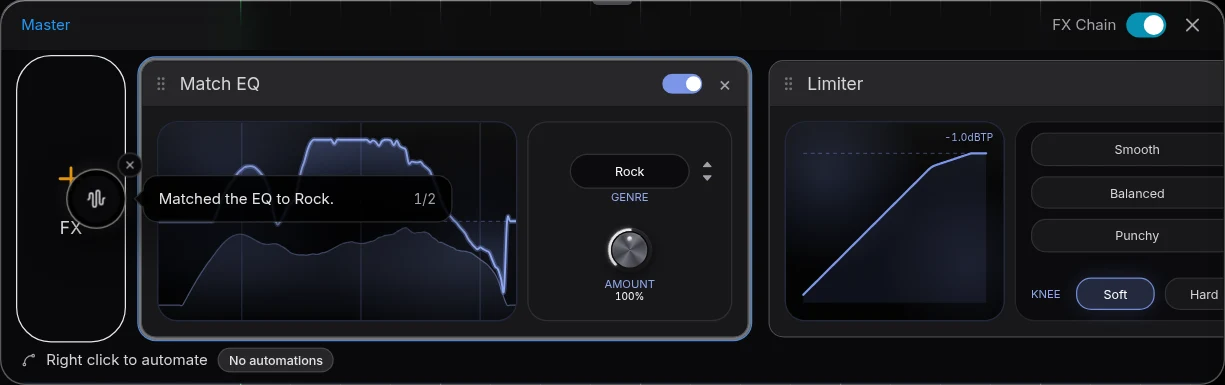
- Master the project. Pause, open Master and press Master project. Match EQ and Limiter land on the master bus. Compare with the FX Chain switch in Master FX.
- Export. Choose MP4 for the video with the cleaned mix, and a 24-bit WAV for an audio archive of the show.
The clean up audio in a video page covers every kind of raw video, and the stem splitter page explains how the split works.
Keep the crowd, on your terms
A live recording with no crowd at all sounds like a rehearsal. The aim is control, not silence. Leave a little of the room in the mix for the energy, and bring the cheers up where they belong: right-click an eligible knob and choose Automate to draw changes over the bars, or split a stem at the end of a song with split mode and raise the clip volume of the applause.
Where the crowd sings along over the singer, lean on the vocal stem and its importance in Mix & Master. Where a single voice right next to the phone shouts through a quiet verse, split that moment out of the vocal stem and lower its clip volume.
Tame a harsh, loud recording
Phones in loud venues often turn cymbals and distorted guitars into a fizzy top end. With stems, that harshness sits on a track of its own. Lower the drums or other stem a little, and use the 8-Band EQ to cut the brittle range above the voice. Then let Master project's Match EQ shape the overall tone, and lower the Limiter's drive in Master FX if the result feels squeezed. The remove background noise from video guide covers noise more broadly.
When the band rehearsed it first
If you also filmed the rehearsal, the same method mixes it, with even more control because a rehearsal room is quieter than a venue. See the mix a band rehearsal video guide. For a solo set, the balance vocals and guitar recorded on one mic guide is the closer fit.
Give the whole job to CoProducer
Describe the gig in producer terms: the genre, the tempo, what should lead and what the room should feel like. CoProducer splits the recording, tags the parts and runs Mix & Master on your project, then you refine any fader or card by hand.
Paste this into CoProducer:
"Clean up the audio from this live gig video: indie rock at about 128 BPM, filmed on a phone near the stage. Split it into stems, tag vocals as Lead vocal, then drums, bass and guitars, bring the vocal forward with Noise Removal and De-Esser, tighten the boomy low end on the bass and the room, keep the crowd as a little ambience, AutoMix for indie rock with a Room space, then master the project and keep it punchy."
Related reading: clean up audio in a video · mix a band rehearsal video · remove background noise from video · stem splitter · AI mastering
Try this in Veena
Clean up the audio from this live gig video: indie rock at about 128 BPM, filmed on a phone near the stage. Split it into stems, tag vocals as Lead vocal, then drums, bass and guitars, bring the vocal forward with Noise Removal and De-Esser, tighten the boomy low end on the bass and the room, keep the crowd as a little ambience, AutoMix for indie rock with a Room space, then master the project and keep it punchy.
Frequently asked questions
How do I clean live performance video audio?
Import the gig video into Veena and right-click it to choose Separate Audio. Split the sound into vocals, drums, bass and other, then rebalance them: bring the vocal up, tame the boomy low end with EQ, use Noise Removal on the voice and press AutoMix. Master project levels the result, and MP4 export puts the cleaned mix back under your footage, free.
Can I make the singer louder in a concert video?
Yes. Veena's stem separation puts the singer on the vocals stem and the band on the drums, bass and other stems, all lined up with the video. Raise the vocal stem's fader, tag it as Lead vocal in Mix & Master and set its importance forward. The band stays in place under it and the picture stays in sync.
Can I reduce crowd noise in a live video?
Yes. Veena's Noise Removal on the Clean stage targets steady background noise on vocal parts, and stem separation gives the vocal and each instrument its own fader. Lower what does not belong, keep a little room for the energy, and split a stem between songs so you can raise the clip volume of the cheers.
How do I tame harsh phone audio from a loud gig?
Work with the stems. In Veena, split the recording so the harsh part, often the cymbals or a loud guitar, sits on its own track. Lower that stem, cut the harsh frequencies with the 8-Band EQ, and let Master project's Match EQ and Limiter shape the final tone. Export a WAV of the result too, for a cleaner archive.
Can CoProducer mix my live recording?
Yes. Describe the gig and the balance you want, such as 'vocal up, bass tighter, keep a little crowd', and Veena's CoProducer splits the recording, tags the parts and runs Mix & Master on your project. Every change it makes is an editable fader, effect card or master setting you can refine by hand.
Meet your personal music producer
Free, in your browser. Describe the song you want and CoProducer builds it with you.
Make music free