How to make a cover video sound professional
Make a cover video sound professional in Veena: separate the audio, split voice from instrument, clean the vocal, mix, master and export the MP4. Free.
To make a cover video sound professional, you give it what a finished single has: a clear vocal, an instrument that supports it, an even level and a space that sounds deliberate. In Veena you get there in one browser tab. Import the cover video, separate its sound, split your voice from your instrument, clean and mix them, master the result and export the MP4.
Veena is an AI DAW with a personal music producer built in. Describe the song you want and CoProducer builds it with you — beats, chords, melody, arrangement and mix — as real tracks you can edit, mix and export. Free, in your browser.
Covers live and die on the first chorus. Viewers compare yours with a record they know by heart, mixed by professionals, so a good performance with homemade sound loses to an average one that sounds finished. This page is the full path from raw cover video to finished upload. It is part of the guide to clean up audio in a video.
What "professional" means to a listener
Listeners rarely name it, but they hear four things:
- A close, clear vocal. Every word lands, with no room wash and no harsh S sounds.
- An instrument that supports. The guitar, piano or backing sits under the voice and fills the gaps between lines.
- An even level. The quiet verse is audible and the big chorus does not jump out of the speaker.
- An intended space. Reverb that sounds chosen, not a kitchen that happened to be there.
How to make a cover video sound professional, step by step
- Import the video. Drag it onto the Veena timeline or press Upload. MP4, M4V, MOV, WebM, MKV and AVI all import.
- Choose Separate Audio. Right-click the video clip; the sound lands on its own track.
- Split the voice from the instrument. Right-click the audio and choose Separate into Stems. Your voice lands on the vocals stem and a guitar or piano on the other stem, each on its own track. Veena keeps the original, muted, so you can compare.
- Name the parts. Open Mix & Master. On Parts, tag the vocals stem as Lead vocal and the other stem as the instrument it holds.
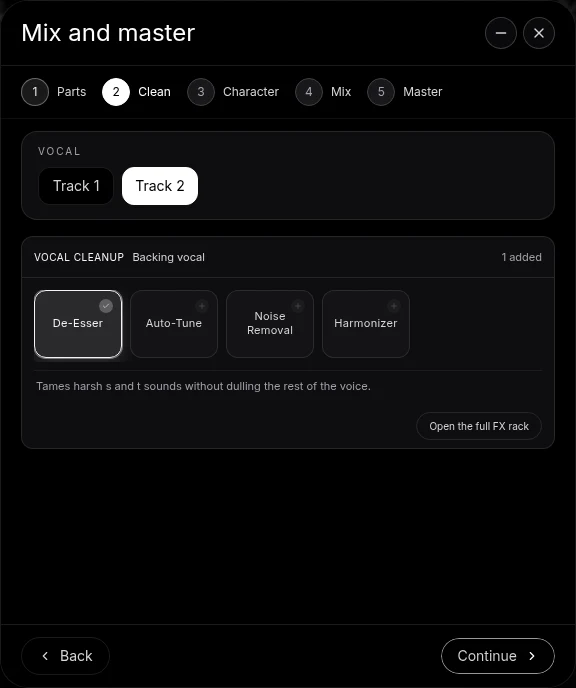
- Clean the vocal. In the Clean stage, add Noise Removal for the room, De-Esser for sharp consonants and, if you want it, a touch of Auto-Tune in the song's key. Open the full FX rack to compare each card on and off.
- Choose a Character. Audition the Character options with the instrument playing and keep the one that suits the song.
- Set Genre and Space, then AutoMix. For an acoustic cover, Room or Plate keeps the vocal intimate. Press AutoMix; the song stays as editable tracks.
- Balance by hand. Pull the instrument down until the vocal sits clearly on top, then bring it back up a touch in the gaps. A small volume lift into the last chorus adds a sense of arrival.
- Master. Pause and press Master project. Veena adds Match EQ and a Limiter to the master bus.
- Export the MP4. Open Export, choose MP4 and export the video with its new sound.
Build a better accompaniment
Sometimes the instrument in the video is the weak part. Two routes give the cover more depth:
- Sing over your own arrangement. Ask CoProducer for a backing track in the song's key and tempo, play your part live, and keep the vocal as the centre. The full method is in how to make a backing track for a cover video.
- Sing over the original's accompaniment. This self-sung cover workflow is supported in Veena: import the original for reference, split it into stems, mute the vocal stem, use Pitch Shift in the Waveform panel to move the key to your range, and record your own voice over it. The voice in your video is always yours.
Layer a harmony
A second vocal line in the last chorus is one of the oldest tricks for a finished sound. Record a harmony take on a new track, or try Harmonizer in the Clean stage on a duplicate of your lead. Pan the harmony slightly away from centre and keep it lower than the lead.
Mind the picture
If you change the audio's timing, the video must still match. Keep the separated audio aligned with the video clip unless you are replacing it with a new take, and if you are, use the clap-and-align method in how to sync audio and video for music covers.
Covers and rights
A cover uses someone else's song. Your voice, your playing and the parts you build in Veena are yours, and Veena's terms say you own the Output you generate. The composition belongs to its writers and the original recording to its owners, so follow each platform's rules for covers before you post. For more, read ownership and rights.
The prompt to paste into CoProducer
Open the studio, import your cover video, separate its audio and split it into stems, then paste this into the CoProducer panel with your own genre, tempo and key:
Mix and master my acoustic cover video at 96 BPM in C major like a finished single: lead vocal clear, close and centred with the sharp S sounds softened, acoustic guitar warm and slightly wide behind it, a short Plate on the vocal and a Room around both, then master it with a Balanced limiter so the last chorus is the biggest moment.
Related reading: clean up audio in a video · mix a vocal cover video · backing track for a cover video · master audio for YouTube · AI mixing assistant
Try this in Veena
Mix and master my acoustic cover video at 96 BPM in C major like a finished single: lead vocal clear, close and centred with the sharp S sounds softened, acoustic guitar warm and slightly wide behind it, a short Plate on the vocal and a Room around both, then master it with a Balanced limiter so the last chorus is the biggest moment.
Frequently asked questions
How do I make a cover video sound professional?
Veena is an AI DAW with a personal music producer built in. Describe the song you want and CoProducer builds it with you — beats, chords, melody, arrangement and mix — as real tracks you can edit, mix and export. Free, in your browser. Import the cover video, separate its audio, split the voice from the instrument, clean the vocal, mix, master and export an MP4.
What makes a cover sound professional rather than homemade?
Four things: a clear, close vocal; an instrument that supports the voice without fighting it; a level that stays even from verse to chorus; and a space that sounds intended. Veena covers each one: Clean for the vocal, stem separation and faders for the balance, AutoMix for the mix and Master project for the final level and tone.
Can I record my own vocal over a backing track for a cover in Veena?
Yes. Self-sung covers are a supported workflow in Veena. Import the original for reference, split it into stems, mute the vocal stem, change the key with Pitch Shift if the song sits too high or low, then record your own voice over the accompaniment. Your cover carries your own voice from first line to last.
Can Veena separate my voice and guitar from one microphone?
Yes. After Separate Audio, right-click the recording in Veena and choose Separate into Stems. Your voice lands on the vocals stem and the guitar or piano on the other stem, each on its own time-aligned track, so you can raise the vocal, soften the guitar and give each its own effects.
Do I own a cover I make in Veena?
Your performance and the parts you make in Veena are yours; Veena's terms say you own the Output you generate. The song itself, its melody and lyrics, belongs to its writers, and the original recording to its owners. Check each platform's rules for cover songs before you post, as you would with any cover.
Meet your personal music producer
Free, in your browser. Describe the song you want and CoProducer builds it with you.
Make music free