How to Balance Vocals and Guitar Recorded on One Mic
Balance vocals and guitar recorded on one mic: split your video's audio into stems in Veena, then set the voice and guitar levels, EQ and space separately.
How do I balance vocals and guitar recorded on one mic?
To balance vocals and guitar recorded on one mic, split the recording into stems in Veena so your voice and your guitar land on separate tracks, then set each one's level, EQ and space as if you had recorded them on two microphones. It works on a video as well as on an audio file, and the balanced mix exports back onto your picture as an MP4. Free, in your browser.
Veena is an AI DAW with a personal music producer built in. Describe the song you want and CoProducer builds it with you — beats, chords, melody, arrangement and mix — as real tracks you can edit, mix and export. Free, in your browser.
The sing-and-play take is the most honest format in music: one person, one instrument, one microphone, one performance. It is also the hardest to mix, because the balance was decided by where the phone sat. Too close to the soundhole and the guitar booms over every word. Too close to your mouth and the guitar sounds like it is in the next room. Until recently the only fix was to record again with two microphones. Stem separation turns the one recording into two parts you can balance.
Why one mic gets the balance wrong
A microphone hears whatever is loudest at its position. An acoustic guitar projects from its body at roughly chest height, and a strummed guitar puts a lot of energy into the low mids, around 150 to 300 Hz, the same range that gives a voice its warmth. Put both into one microphone and they compete in that range: the guitar wins on level, the voice loses its body, and turning the whole recording up makes both louder together.
Balancing them needs two things a single file never gives you: a separate level for each part, and separate EQ so the guitar can give up the range the voice needs.
Balance vocals and guitar recorded on one mic, step by step
- Bring the recording in. Drag the video or audio file onto Veena's arrangement, or press Upload. Video files in MP4, M4V, MOV, WebM, MKV and AVI all import.
- Separate Audio, if it is a video. Right-click the video clip and choose Separate Audio. The sound becomes its own clip under the picture.
- Split into stems. Stop playback, right-click the audio clip and choose Separate into Stems. Four time-aligned tracks appear. Your voice lands on the vocals stem; the acoustic guitar lands on the other stem, where guitars, keys and strings live. The drums and bass stems hold little or nothing for this kind of take; mute them or delete them. Veena keeps the original muted beside the stems so you can compare.
- Set a rough balance with the faders. Play the busiest chorus. Bring the vocal stem up until every word is clear, then bring the guitar up under it until the strumming supports the voice without covering a syllable.
- Carve the guitar's low mids. Open the guitar track's FX and add the 8-Band EQ. Cut gently around 200 Hz to remove the boom that masks the voice, and add a Filter to roll off the very lowest rumble. Listen to both parts together while you do it, not the guitar on its own.
- Clean the voice. Open Mix & Master, tag the vocals stem as Lead vocal and the other stem as guitar on Parts, and raise the vocal's importance. On Clean, add Noise Removal for room tone and De-Esser for sharp S sounds.
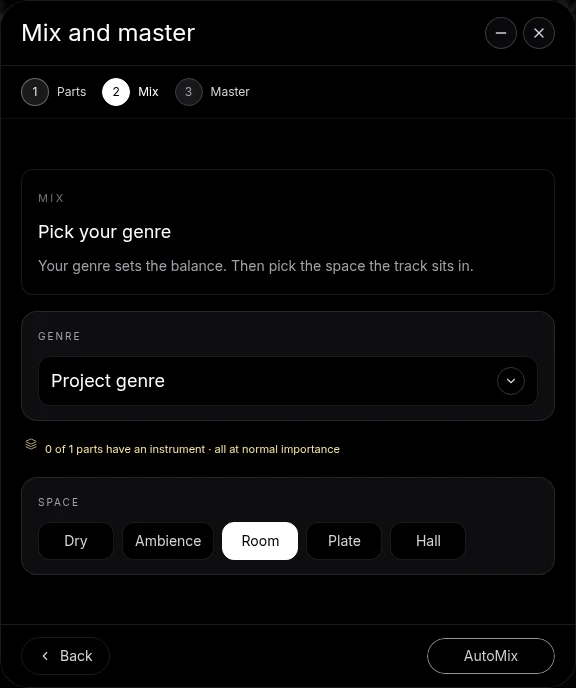
- Give them a shared space. On Mix, choose a Genre and a Space. Room or Ambience puts the voice and guitar in the same believable place. Press AutoMix and Veena balances levels, pan and effects across both tracks.
- Master and export. Pause, open Master and press Master project to add Match EQ and a Limiter to the master bus. Then Export: MP4 for the video with the new mix, or WAV and MP3 for the audio.
The stem splitter page explains the split itself, and the clean up audio in a video page covers every kind of raw video.
Small moves that make the balance feel natural
Pan the guitar a touch off-centre. Leave the voice in the middle and move the guitar slightly to one side. A little separation in space helps the ear hear two performers instead of one blur.
Compress the voice, not the whole take. A Compressor on the vocal stem evens out loud and quiet lines so the voice holds its place over the guitar. Before stems, compressing the full recording would have pumped the guitar every time you sang.
Let the guitar answer the voice. Where you stop singing between lines, the guitar can come up a little. Split the guitar stem at those gaps with split mode (press C) and raise the clip volume of the instrumental moments.
Leave a little of the room in. A one-mic take recorded in a bedroom has a room sound in both parts. Removing all of it makes the stems sound pasted together. Noise Removal on the voice and a shared Space on Mix keep them in one place.
Keep it sounding like one performance
The goal is a better balance of the take you played, not two parts that sound recorded on different days. Make every move while both stems play together, and check against the original by unmuting it for a moment: the balanced version should sound like the same performance with the microphone in the right place. If a busy chorus crowds the voice, lower the guitar stem's fader a little there, or ask CoProducer to "make the guitar quieter under the vocal in the chorus". The mix a guitar playthrough video guide covers the guitar side in more depth, and the make acoustic cover videos sound better guide covers the whole cover.
Hand the balance to CoProducer
The same pass comes from one request. Tell CoProducer the song, the tempo and key if you know them, and the balance you hear in your head. It runs the split and the Mix & Master workflow on your project, and every fader and card it sets stays editable.
Paste this into CoProducer:
"Balance this one-mic take: folk-pop cover, about 96 BPM in G, my voice and acoustic guitar on a single phone mic. Split it into stems, tag the vocal as Lead vocal and the other stem as guitar, bring the vocal forward, clear the low-mid boom from the guitar around 200 Hz and pan it slightly wide, light Noise Removal and De-Esser on the voice, a short Room for both, then AutoMix for acoustic and master the project."
Related reading: clean up audio in a video · make acoustic cover videos sound better · mix a guitar playthrough video · mix a vocal cover video · stem splitter
Try this in Veena
Balance this one-mic take: folk-pop cover, about 96 BPM in G, my voice and acoustic guitar on a single phone mic. Split it into stems, tag the vocal as Lead vocal and the other stem as guitar, bring the vocal forward, clear the low-mid boom from the guitar around 200 Hz and pan it slightly wide, light Noise Removal and De-Esser on the voice, a short Room for both, then AutoMix for acoustic and master the project.
Frequently asked questions
How do I balance vocals and guitar recorded on one mic?
Split the recording into stems. In Veena, right-click the audio and choose Separate into Stems: your voice lands on the vocals stem and the acoustic guitar on the other stem, both lined up with the original. Each now has its own fader, EQ and effects, so you can raise the voice, tuck the guitar under it and mix them like two separate microphones.
Can I separate my voice from my guitar in a video?
Yes. Import the video into Veena, right-click it and choose Separate Audio, then right-click the audio and choose Separate into Stems. Veena splits it into vocals, drums, bass and other, and a voice-and-guitar take lands mainly on the vocals and other stems. Asking CoProducer to isolate the vocals gives two tracks: the voice and everything else.
Is the guitar loud and the vocal quiet a common problem?
Yes. A phone or a single microphone sits closer to the guitar body than to your mouth, and an acoustic guitar is loud in the low mids where a voice has its body. In Veena, splitting into stems fixes the balance after the fact: lower the guitar stem's fader, cut its low mids with EQ and raise the vocal's importance in Mix & Master.
Does balancing the stems change the video sync?
No. Veena places the separated audio under the picture and lines every stem up with the original recording, so the voice and the guitar stay in time with your mouth and your hands. Change levels, EQ and effects as much as you like; the timing holds, and MP4 export carries the picture with the balanced mix.
Can CoProducer balance my one-mic recording?
Yes. Tell Veena's CoProducer the balance you want, such as 'voice forward, guitar warm and just under it, short room', and it splits the take, tags the parts and runs the Mix & Master workflow on your project. Each change appears as an editable effect card or fader you can adjust by hand afterwards.
Meet your personal music producer
Free, in your browser. Describe the song you want and CoProducer builds it with you.
Make music free