How to remove background noise from video
Remove background noise from video for free: pull the sound off your clip, clear hiss and rumble with Noise Removal and EQ in Veena, and export the MP4.
How do you remove background noise from a video?
You can remove background noise from video for free in Veena: separate the clip's sound onto its own track, cut the rumble with a high-pass filter, clear the hiss with Noise Removal, then mix, master and export the MP4 with the picture. It runs in your browser, and every step is an effect card you can hear on and off.
Veena is an AI DAW with a personal music producer built in. Describe the song you want and CoProducer builds it with you — beats, chords, melody, arrangement and mix — as real tracks you can edit, mix and export. Free, in your browser.
Background noise is the sound that was in the room before you started playing: a laptop fan, the fridge, traffic outside, the air conditioner, the hiss of a cheap mic. In a music video it sits under the quiet passages and between phrases, which is exactly where a viewer's attention goes. The fix has two halves, because noise has two halves: the low rumble and the high, steady hiss.
Remove background noise from video in Veena, step by step
- Import the video. Drag it onto the arrangement or press Upload. Veena opens MP4, M4V, MOV, WebM, MKV and AVI.
- Separate the audio. Right-click the video clip and choose Separate Audio. The sound lands as an ordinary audio clip on its own track.
- Find the noise. Loop the quietest passage: the count-in, the pause before the last chorus, the ring-out at the end. Drag across the ruler to set the loop. That is where the noise is easiest to hear and easiest to judge.
- Cut the rumble. Open the track's FX, add Filter as a high-pass, or a low cut on the 8-Band EQ. Raise it until the rumble goes, then back it off slightly before it thins the instrument.
- Clear the hiss. Add Noise Removal after the filter. Compare the card bypassed and enabled over the loop, then over a loud passage, to check the music is untouched.
- Split the parts if you want to treat them separately. Stop playback, right-click the audio and choose Separate into Stems. Each stem lands on its own track, time-aligned, so you can clean the vocal harder than the guitar.
- Mix and master. Open Mix & Master, press AutoMix, then Master project with playback paused.
- Export. Open Export and choose MP4 to keep the picture, or WAV for the audio alone.
Low noise and high noise need different tools
| Noise | Where it sits | The tool in Veena |
|---|---|---|
| Traffic, footsteps, desk knocks, handling | The lowest octaves, under the music | Filter as a high-pass, or 8-Band EQ low cut |
| Air conditioning, fans | Broadband, steady | Noise Removal |
| Mic and preamp hiss | High, steady | Noise Removal, then an EQ check |
| Sharp S and T sounds | Upper mids, on the voice | De-Esser |
| Hum and buzz from cables or amps | Narrow tones | A narrow cut on the 8-Band EQ |
A high-pass filter is the cheapest win in audio. A voice sits well above the lowest rumble, and most acoustic instruments sit above it too, so cutting below them removes noise with nothing musical attached. Bass and kick drum are the exception: on a bass or drum video, keep the filter low and let Noise Removal do more of the work.
Hum is its own problem, with its own guide: remove hum from video audio.
Clean the vocal harder than the instrument
Noise removal works best on one source at a time. Once Separate into Stems has put the voice on the vocals stem and the guitar or piano on the other stem, you can set Noise Removal firmly on the vocal, where gaps between phrases expose every bit of hiss, and lightly on the instrument, where sustain and strings mask it. Veena keeps the original audio muted beside the stems, so you can compare the cleaned version with what you recorded at any point.
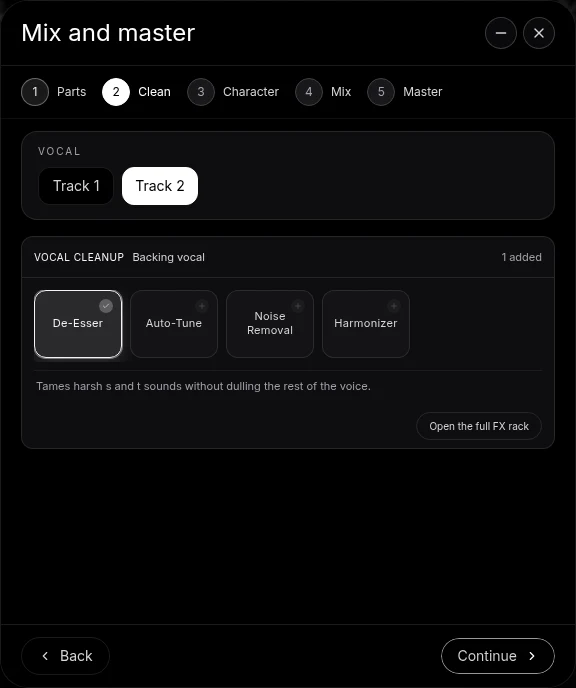
The same split lets you use the Clean stage of Mix & Master properly. Tag the voice as Lead vocal on Parts, and Clean offers De-Esser, Auto-Tune, Noise Removal and Harmonizer on that vocal, as editable track effects.
Judge it in the song, not in solo
Noise is easiest to hear in solo and least important in the mix. Clean in solo to find the noise, then switch solo off and judge the setting with everything playing. If the vocal starts to sound watery or distant, back the Noise Removal off. A small amount of room under a live performance sounds natural; the aim is a floor quiet enough that nobody notices it, not silence.
Let CoProducer clean it
After Separate Audio, the same job is one request. Ask CoProducer to "take out the fan hiss and the low rumble without dulling the vocal" and it adds and tunes Noise Removal, Filter and EQ on your real tracks. Follow up with "a little less noise removal on the guitar" or "now master it for YouTube", and the change lands on the cards you can open and adjust.
For the whole process, from the raw clip to the finished MP4, see how to clean raw video audio and the hub for every guide in this series, clean up audio in a video. The AI mixing assistant page shows the mix stage in depth.
Export without a watermark
Open Export from your avatar and choose MP4, which appears whenever the project holds a video. The picture leaves with the cleaned audio. Exports are free on every plan, with no cap and no watermark.
The prompt to paste into CoProducer
Separate the audio from your clip first, then paste this:
"Remove the background noise from my video's audio: cut the rumble below the voice and guitar, take out the fan hiss in the quiet passages without dulling the vocal, soften the sharp S sounds, then master it clean and even for YouTube."
Related reading: clean up audio in a video, how to clean raw video audio, improve phone video audio, best AI noise removal tools.
Try this in Veena
Remove the background noise from my video's audio: cut the rumble below the voice and guitar, take out the fan hiss in the quiet passages without dulling the vocal, soften the sharp S sounds, then master it clean and even for YouTube.
Frequently asked questions
How do you remove background noise from a video for free?
Import the video into Veena, right-click it and choose Separate Audio, then open the new audio track's FX rack. Add Filter as a high-pass for rumble and Noise Removal for hiss, compare each card bypassed and enabled, then export an MP4. Veena is free in your browser, with no watermark and no cap on exports.
What kind of background noise can Veena remove?
Veena's Noise Removal targets steady background noise: fans, air conditioning, computer hum, tape-style hiss and the broadband wash of a busy room. Low rumble from traffic, footsteps and handling goes with a high-pass Filter or a low cut on the 8-Band EQ. Together they clear the floor under a musical performance.
Will noise removal make my vocal sound dull?
Set it by ear and it keeps the vocal clear. In Veena, separate the clip into stems first so Noise Removal works on the vocal stem alone, then compare it bypassed and enabled on the quietest phrase. Add a gentle high-shelf lift on the 8-Band EQ afterwards if the top end needs a little air back.
Should I remove noise before or after mixing?
Before. Noise feeds every effect after it: a compressor raises it in the gaps and a limiter makes it louder with the song. In Veena, put the high-pass Filter and Noise Removal first in the track's FX chain, then EQ and Compressor, and leave Match EQ and Limiter on the master bus for last.
Can CoProducer remove the background noise for me?
Yes. After Separate Audio, ask CoProducer in Veena to take out the hiss and the rumble without dulling the vocal. It adds and tunes the same effect cards you would, such as Noise Removal, Filter and EQ, on your real tracks. You can open every card afterwards, turn its knobs and bypass it to compare.
Meet your personal music producer
Free, in your browser. Describe the song you want and CoProducer builds it with you.
Make music free