How to remove hum from video audio
Remove hum from video audio in Veena: separate the sound, high-pass below the music, cut 50 or 60 Hz and its harmonics, then clear the buzz and export.
To remove hum from video audio, you cut the hum precisely and leave the music alone. Hum is a steady tone at a known frequency, which makes it one of the most fixable problems in a performance video. In Veena you separate the video's sound onto a track, high-pass below the music, notch out the hum and its harmonics with EQ, lower any remaining buzz and export the MP4.
Veena is an AI DAW with a personal music producer built in. Describe the song you want and CoProducer builds it with you — beats, chords, melody, arrangement and mix — as real tracks you can edit, mix and export. Free, in your browser.
Hum turns up most in guitar and bass playthroughs, keyboard videos filmed next to a laptop charger and anything shot under dimmer-switched lights. This page explains where it comes from, how to find its exact frequency, and the order of fixes in Veena. It belongs to the wider guide to clean up audio in a video.
Where hum comes from
Hum is mains electricity getting into your signal. Its fundamental frequency matches the local supply:
- 50 Hz in the UK, Europe, India and most of Asia, Africa and Australia.
- 60 Hz in the United States, Canada and parts of South America.
It rarely stays at one frequency. Hum carries harmonics at whole-number multiples: 100, 150 and 200 Hz for a 50 Hz supply, or 120, 180 and 240 Hz for 60 Hz. The harmonics are what make hum sound like a buzz rather than a low drone, and they sit right in the range of your instrument.
The usual sources:
- Ground loops between an amp, an audio interface and a laptop plugged into different sockets.
- Single-coil pickups near a monitor, a phone charger or a fridge.
- Dimmer switches and LED drivers in the room's lighting.
- Unshielded or damaged cables.
How to remove hum from video audio, step by step
- Import the video. Drag the file onto the Veena timeline or press Upload. MP4, M4V, MOV, WebM, MKV and AVI all import.
- Choose Separate Audio. Right-click the video clip. Its sound lands on an audio track.
- Split the parts if the video has more than one. Right-click the audio and choose Separate into Stems. Vocals, drums, bass and other arrive on separate tracks, so you can treat the hum where it is worst without touching the rest.
- Find the hum's frequency. On the track's FX chain, add 8-Band EQ. Make one band a sharp boost and sweep it slowly from 40 to 70 Hz. The hum jumps out at 50 or 60 Hz.
- Cut the fundamental and its harmonics. Turn that band into a narrow cut. Use the next bands for the first two or three harmonics: 100 and 150 Hz, or 120 and 180 Hz. Keep each cut as narrow as the band allows, so the notes around it survive.
- High-pass what never plays low. On a voice or a guitar, add Filter as a high-pass just below the lowest note. A guitar's low E is about 82 Hz, so a high-pass in the 60 to 70 Hz range clears the fundamental entirely. On a bass, skip the high-pass: its low E sits near 41 Hz.
- Lower the remaining buzz. For a vocal, tag it as Lead vocal in Mix & Master and add Noise Removal in Clean. On other tracks, add Noise Removal from the Stock FX picker.
- Compare. Flip each card's switch to hear it on and off. The hum should drop away while the playing keeps its body.
- Mix, master and export. Press AutoMix, then Master project, and export an MP4.
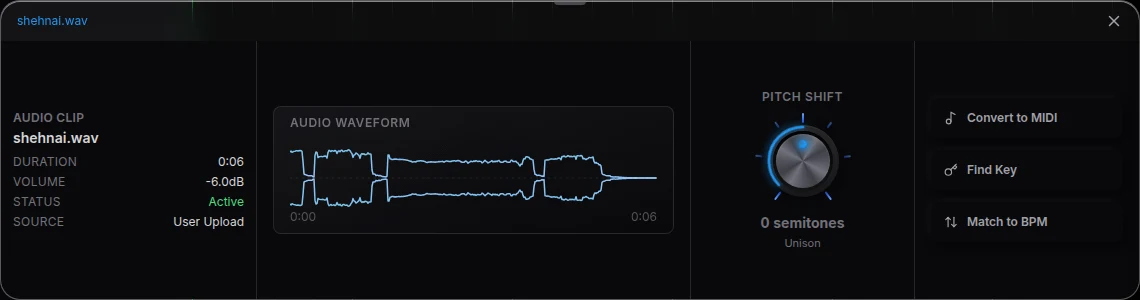
Use the gaps to judge the result
Hum is easiest to hear where the music stops: the second before the first note, the gap after a riff, the ring-out at the end. Loop one of those gaps with the ruler while you set the EQ cuts. When the gap sounds quiet, play the full take again and listen for the low end of the instrument. If a note you played now sounds weaker, move the nearest cut a few hertz or make it narrower.
Hum versus hiss versus buzz
- Hum is a low, steady tone at 50 or 60 Hz. Narrow EQ cuts handle it best.
- Buzz is hum with strong upper harmonics. Cut more harmonics, then use Noise Removal.
- Hiss is broadband high-frequency noise from a preamp or a cheap mic. Noise Removal is the tool, covered in how to remove background noise from video.
Stop the hum at the source next time
- Plug the amp, interface and laptop into the same power strip.
- Turn your guitar so the pickups face away from the monitor while you film.
- Switch dimmers fully on or off, never halfway.
- Run the laptop on battery while you record.
Related guides
Hum is a common problem in instrument videos, so the playthrough guides are the natural next step: how to mix a guitar playthrough video and how to mix a bass playthrough video. If the room also rings, read how to fix echo in video audio. For the full effect list, see Veena's AI mixing assistant.
The prompt to paste into CoProducer
Open the studio, import the video and separate its audio, then paste this into the CoProducer panel, changing the hum frequency, genre, tempo and key to match your take:
Clean up this electric guitar playthrough video at 120 BPM in E minor: there is a 50 Hz amp hum under the whole take, so high-pass the guitar just below its low E, cut 50, 100 and 150 Hz narrowly, lower the steady buzz with Noise Removal, keep the guitar wide and present over the backing track, then master it Punchy.
Related reading: clean up audio in a video · mix a guitar playthrough video · mix a bass playthrough video · fix echo in video audio
Try this in Veena
Clean up this electric guitar playthrough video at 120 BPM in E minor: there is a 50 Hz amp hum under the whole take, so high-pass the guitar just below its low E, cut 50, 100 and 150 Hz narrowly, lower the steady buzz with Noise Removal, keep the guitar wide and present over the backing track, then master it Punchy.
Frequently asked questions
How do I remove hum from video audio?
Veena is an AI DAW with a personal music producer built in. Describe the song you want and CoProducer builds it with you — beats, chords, melody, arrangement and mix — as real tracks you can edit, mix and export. Free, in your browser. Import the video, choose Separate Audio, high-pass below the music, cut the hum frequency and its harmonics with 8-Band EQ, then export.
Is the hum in my video at 50 Hz or 60 Hz?
It follows your mains electricity. The UK, Europe, India and most of Asia and Africa run at 50 Hz, so hum sits at 50 Hz and its multiples. The United States and Canada run at 60 Hz. In Veena, sweep a narrow 8-Band EQ boost around both and cut where the hum jumps out.
What causes hum in a guitar or bass playthrough video?
Mains hum comes from electricity leaking into the signal: ground loops between an amp, an interface and a laptop on different sockets, single-coil pickups near a monitor, dimmer switches and unshielded cables. In Veena you reduce it after the fact with a high-pass Filter, narrow EQ cuts and Noise Removal, and the steady buzz drops away from the playing.
Will cutting the hum make my bass sound thin?
Not when you cut narrowly. A bass's low E sits near 41 Hz, so a high-pass at 50 Hz would remove notes you played. Instead, in Veena use narrow 8-Band EQ cuts exactly on the hum and its harmonics, and leave a high-pass for parts that never play that low, such as the voice and the guitar.
Can CoProducer remove hum from my recording?
Yes. Drag the clip into the CoProducer panel in Veena and describe the problem in plain words, for example: there is a 60 Hz hum under the guitar, cut it and its harmonics and keep the tone. CoProducer adds and tunes the same track effects you would, so each cut is a card you can open and adjust.
Meet your personal music producer
Free, in your browser. Describe the song you want and CoProducer builds it with you.
Make music free