Clean vocals in Veena
Clean vocals in Veena by selecting the vocal in Mix & Master, adding the Clean stage’s processing and choosing a Character for each lead or backing part.
Veena is an AI DAW with a personal music producer built in. Describe the song you want and CoProducer builds it with you — beats, chords, melody, arrangement and mix — as real tracks you can edit, mix and export. Free, in your browser.
Clean vocals in Veena, step by step
- Open Mix & Master. On Parts, identify the voice as Lead vocal or Backing vocal. The flow offers vocal treatment stages for tagged vocal parts.
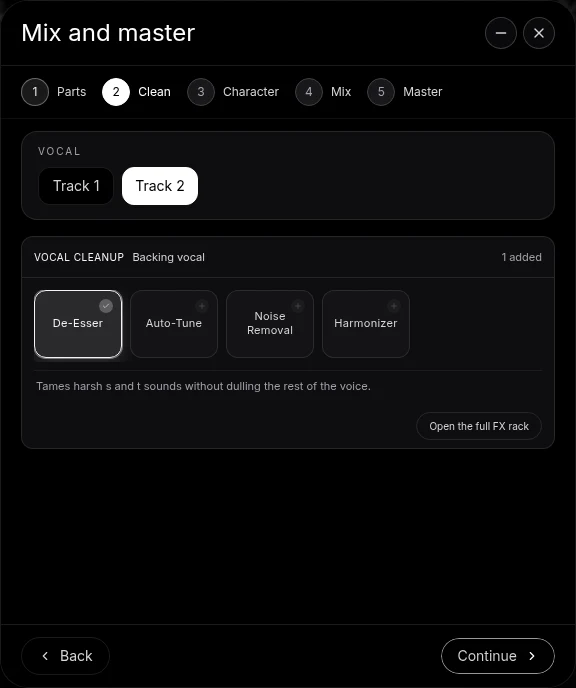
- Press Continue to reach Clean. With several vocal tracks, use the Vocal choice above the rack to select the part you want to treat.
- Choose the processing it needs. De-Esser addresses sharp consonants, Auto-Tune adjusts pitch, Noise Removal targets background noise, and Harmonizer adds pitch voices.
- Open the full FX rack for finer settings. Open the full FX rack takes you to that vocal’s ordinary track effects. Adjust the visible knobs and compare the processing switched on and off.
- Return to Character. Audition the available character choices in the song, then keep the one that suits that vocal’s role.
- Select the next vocal. The same Vocal choice is shared between Clean and Character, so the part you clean is the part whose character you shape. Treat the lead and each backing voice separately.
- Continue to Mix and Master. Balance the treated vocals against the instruments, then master the summed song.
Start with the recording’s role
A lead carries the words and phrasing. Backing vocals support that lead and often take more width or space. Tagging the role on Parts gives the flow and CoProducer the musical context. Naming the track makes several backing voices easier to select.
Compare in the arrangement
Hear the vocal with drums, bass and chords, then compare with the treatment bypassed. Cleanup serves the performance: a quieter noise floor, less sharp consonants or a controlled pitch effect should help the words sit in the song.
Ask CoProducer to "clean the lead vocal, keep it close, and give the backing vocals a wider character." Its changes appear on the same track chains you can edit by hand.
See the AI mixing assistant page for this capability in the full Veena studio.
Related reading: Veena help centre, Mix & Master, CoProducer edits, Release note.
Try this in Veena
Clean the lead vocal, keep it close and clear, and give the backing vocals a wider character in a short room.
Frequently asked questions
How do I clean up several vocals in Veena?
Open Mix & Master in Veena and identify each vocal part on Parts. On Clean, choose the vocal from the Vocal selector and set its De-Esser, Auto-Tune, Noise Removal or Harmonizer treatment. The chosen processing is editable on that vocal track; select another vocal to give it its own settings.
Can I clean several vocal tracks in Veena?
Yes. In Veena’s Mix & Master flow, tag each voice on Parts, then use the Vocal choice on Clean and Character to select the part you are treating. The selected vocal stays the same between those stages. Choose the next lead or backing track to give it its own cleanup and character.
Can I edit vocal cleanup after the flow in Veena?
Yes. The vocal treatment in Veena uses editable track effects. Open the full FX rack from the Clean stage, or use that track’s FX button later, to inspect its processing and turn the controls. Compare an effect bypassed and enabled while the vocal plays in the arrangement with its supporting parts.
Meet your personal music producer
Free, in your browser. Describe the song you want and CoProducer builds it with you.
Make music free