How to clean audio for playthrough videos
Clean audio for playthrough videos: lift your instrument out of the backing track with stems, clear the room noise, mix and master in Veena, free online.
How do you clean audio for a playthrough video?
To clean audio for playthrough videos, put the instrument you played back in charge of the mix: in Veena, separate the clip's audio, split it into stems so your part sits on its own track, clear the room noise, lift your instrument above the backing, master it and export the MP4. It is free, in your browser.
Veena is an AI DAW with a personal music producer built in. Describe the song you want and CoProducer builds it with you — beats, chords, melody, arrangement and mix — as real tracks you can edit, mix and export. Free, in your browser.
A playthrough video has one job: show the part, and let the viewer hear it. The usual recording is a camera or phone catching your instrument and the backing track from the same speakers, with the room in between. The result is a blend where the backing competes with the very part the video is about. The fix is to separate them and mix them like the two sources they are.
Clean audio for playthrough videos, step by step
- Import the video. Drag it onto the arrangement or press Upload. Veena opens MP4, M4V, MOV, WebM, MKV and AVI.
- Separate the audio. Right-click the video clip and choose Separate Audio. The sound lands on its own audio track, lined up with the picture.
- Split it into stems. Stop playback, right-click the audio and choose Separate into Stems. Vocals, drums, bass and other arrive on four time-aligned tracks; Veena mutes the original so you can compare.
- Find your instrument. Solo each stem. Drums land on drums, bass on bass, and guitar, piano, synths and strings on other.
- Clean your part. On your instrument's stem, open FX and add Filter as a high-pass where the part allows it, then Noise Removal for room hiss.
- Set the balance. Bring your stem up, or the others down, until your part leads and the backing supports it.
- Run Mix & Master. Tag your instrument on Parts and set its importance high. Choose a Genre and a Space on Mix, then press AutoMix.
- Master and export. Press Master project with playback paused, then Export and choose MP4.
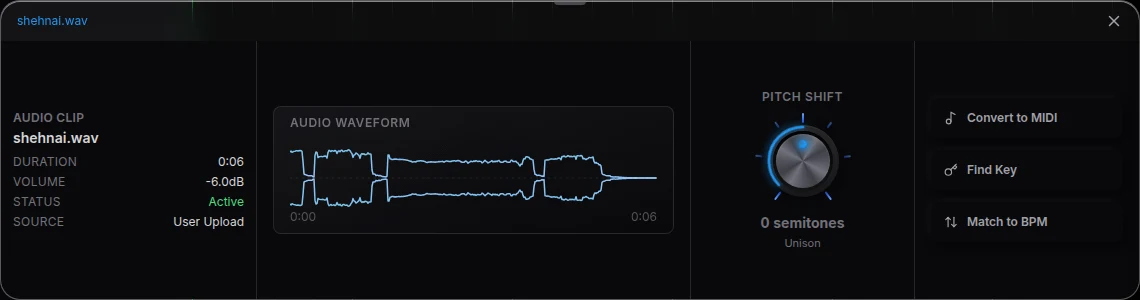
Which stem holds your instrument
| You played | It lands on | Typical cleanup on that stem |
|---|---|---|
| Drums | drums | Gentle low cut below the kick, Compressor for punch |
| Bass | bass | Leave the low end; Compressor for even notes |
| Electric or acoustic guitar | other | High-pass, Noise Removal, a presence lift on the 8-Band EQ |
| Piano or keys | other | High-pass well below the left hand, Noise Removal |
| Vocals | vocals | De-Esser, Noise Removal, Compressor |
The other stem holds every pitched instrument that is not voice or bass. On a guitar playthrough over a full band backing, the backing's keys and guitars share that stem with yours. Our guides for a guitar playthrough video, a bass playthrough video and a drum cover video work through each case.
Set the level like the video's subject
Playthrough mixes fail in one direction more than any other: the part the video is about sits too far back. Viewers came to hear the fingers they are watching. Set your instrument a clear step above where it would sit in a normal band mix, then check two moments: the busiest passage, where the backing is loudest, and the quietest, where room noise shows. If your part leads in both, the balance is right.
On Parts in Mix & Master, the importance setting does the same thing for AutoMix: set your instrument as the most important part and AutoMix shapes the levels, pan and space around it, on your real, editable tracks.
Give the parts one room
A camera mic hears your instrument in the room and the backing from speakers in the same room, and after separation those two can sound like two places. A short shared space puts them back together. On Mix, the Space choice offers Dry, Ambience, Room, Plate and Hall; Room or Ambience suits most playthroughs. You can also add Reverb on the track FX and set its Decay and Mix by ear.
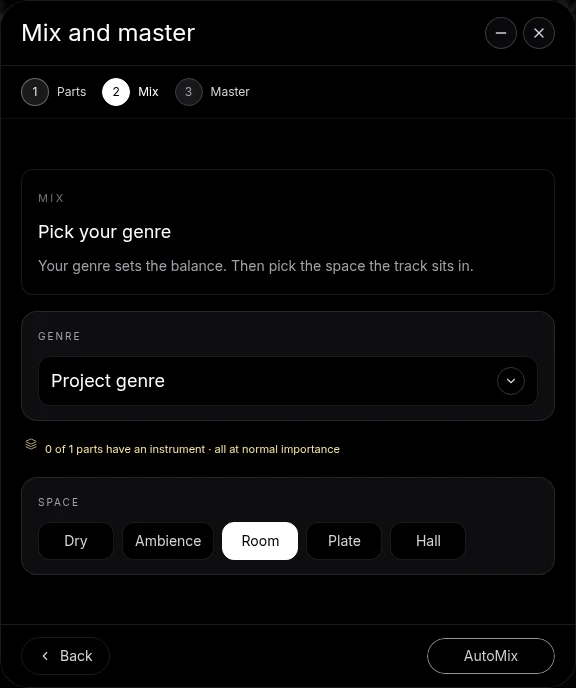
Let CoProducer run it
Every step above works as one request. Ask CoProducer to "split the audio, put my guitar in front, clean the room noise and master it for YouTube", and it uses the same stem separation, Mix & Master flow and effect cards. Follow up in a sentence, such as "the backing 2 dB lower" or "less reverb on my part", and refine by hand when you want to.
For the general method behind every video in this series, see how to clean raw video audio, and for the full set of guides, the hub page on how to clean up audio in a video. Separation on its own is on the free stem splitter page.
Export the playthrough
Open Export from your avatar and choose MP4. The picture leaves with the mixed and mastered audio, free on every plan, with no cap and no watermark.
The prompt to paste into CoProducer
Separate the audio from your clip first, then paste this:
"Mix my playthrough video: split the audio into stems, put my instrument up front and clear, tuck the backing track a few dB under it, take out the room noise and the low rumble, give everything a short shared room, then master it loud and clean for YouTube."
Related reading: clean up audio in a video, mix a guitar playthrough video, mix a drum cover video, how to clean raw video audio.
Try this in Veena
Mix my playthrough video: split the audio into stems, put my instrument up front and clear, tuck the backing track a few dB under it, take out the room noise and the low rumble, give everything a short shared room, then master it loud and clean for YouTube.
Frequently asked questions
How do you clean audio for a playthrough video?
Import the playthrough into Veena, right-click it and choose Separate Audio, then Separate into Stems. Your instrument lands on its own stem, apart from the backing. Clean it with a high-pass Filter and Noise Removal, set it above the backing, run AutoMix and Master project, and export an MP4. It is free in your browser.
How do I make my instrument louder than the backing track in a playthrough?
Split the audio into stems in Veena. Drums, bass, vocals and other land on separate time-aligned tracks, so the stem holding your instrument gets its own fader. Raise it, or lower the rest, then tag it as the lead part on Mix & Master's Parts screen so AutoMix keeps it in front.
Which stem will my instrument be on?
Veena separates four stems: vocals, drums, bass and other. A drum playthrough lands on the drums stem and a bass playthrough on the bass stem. Guitar, piano, synths and strings land on the other stem. Solo each stem in Veena to confirm where your part went before you start mixing.
Do I need the original backing track to mix a playthrough?
No. Veena splits the recorded video audio itself, so the backing you played along to separates from your instrument even when both reached the camera mic together. If you also have your own backing file, import it beside the video and line it up; Veena keeps both as editable tracks.
Can CoProducer mix my playthrough video?
Yes. After Separate Audio, ask CoProducer in Veena to split the audio, put your instrument in front, clean the room noise and master the result for YouTube. It reaches the same stem separation, Mix & Master flow and effect cards you use by hand, and every change stays editable on your real tracks.
Meet your personal music producer
Free, in your browser. Describe the song you want and CoProducer builds it with you.
Make music free