Mix and master in Veena
Mix and master in Veena with the Mix & Master flow: identify the parts, clean and shape vocals, balance the song with AutoMix, then master it on the master bus.
Veena is an AI DAW with a personal music producer built in. Describe the song you want and CoProducer builds it with you — beats, chords, melody, arrangement and mix — as real tracks you can edit, mix and export. Free, in your browser.
Mix and master in Veena, step by step
- Open Mix & Master. Use the entry in the left rail. The window is titled Mix and master and starts on Parts.
- Say what each part is. Use each part's instrument choice to identify drums, bass, keys, lead vocal or backing vocal. Use the preview button to hear that part on its own. Set its importance when you want a lead forward or a supporting part behind.
- Press Continue. Vocal parts add Clean and Character stages. With several vocals, use Vocal to choose the part you are treating, then choose the other vocal before moving on. Without vocals, go straight to Mix.
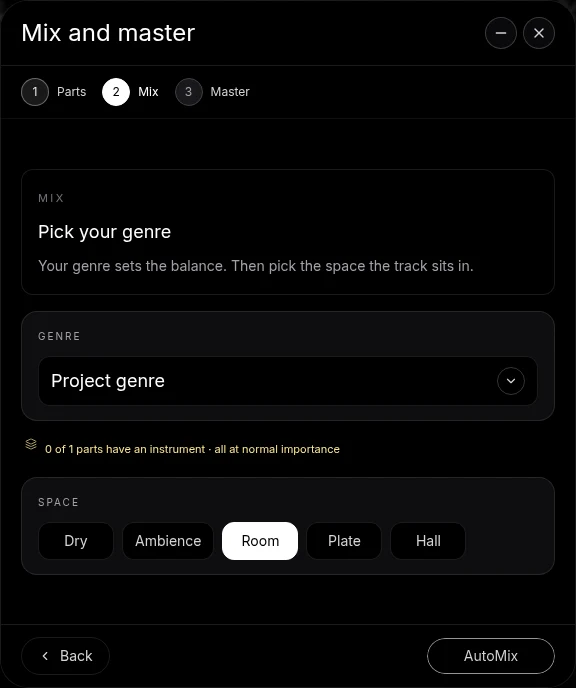
- Choose Genre and Space on Mix. Genre begins at Project genre. Space offers Dry, Ambience, Room, Plate and Hall.
- Press AutoMix. The window minimizes into a moving bubble. It reports the work and points at the actual controls being changed. The song stays as separate editable tracks.
- Open the bubble, choose Master and press Master project. Pause playback first. Veena measures the mix and installs Match EQ followed by Limiter at the end of the master FX chain.
- Play and export the result. Open Master FX to inspect the cards. Its FX Chain switch compares the processed and unprocessed bus. The same choice reaches playback and export.
Let CoProducer work the same controls
Ask CoProducer to "mix this pop song, with the lead vocal forward, bass centred and a room around the backing vocals, then master it." The request uses the same Mix & Master surface as the manual buttons. A smaller follow-up can adjust the limiter, a part's importance, or the amount of space without rebuilding the song.
Keep your decisions in the project
Parts, effects, levels and the mastering cards are ordinary project settings. You can open their controls after the flow finishes and refine them by hand. Pressing Master project again updates the mastering pair in place. Closing or minimizing the flow does not remove processing from the song.
See the AI mastering page for this capability in the full Veena studio.
Related reading: Veena help centre, Use track and master effects, CoProducer edits, Release note.
Try this in Veena
Mix and master my pop song: lead vocal forward, centred kick and bass, backing vocals wider, and a short shared room.
Frequently asked questions
How do I mix and master a song in Veena?
Open Mix & Master in Veena’s left rail, identify the Parts and choose the Genre and Space on Mix before pressing AutoMix. Vocal songs add Clean and Character stages. Pause playback for Master project, then inspect the editable master cards and export the song with the master chain enabled.
Does AutoMix replace my tracks in Veena?
No. AutoMix in Veena changes the levels, pan, effects and shared spaces of the editable project. Your separate musical parts remain on the timeline. The Mix & Master bubble shows the controls the run changes, and you can open a track’s FX chain afterwards to refine the result by hand.
How does CoProducer use Mix & Master in Veena?
CoProducer reaches the same mixing and mastering workflow as the manual controls in Veena. Describe the balance, the lead and the space you want. The flow shows the part roles, the run minimizes into its progress bubble, and the mastering result appears as editable Match EQ and Limiter cards on the master bus.
Meet your personal music producer
Free, in your browser. Describe the song you want and CoProducer builds it with you.
Make music free