How to clean raw video audio
How to clean raw video audio for free: split the sound from your clip, remove noise and harsh S sounds, mix, master and export the MP4 in Veena.
How do you clean raw video audio?
Here is how to clean raw video audio in Veena, free in your browser: import the clip, separate its audio onto its own track, take out the noise and the rumble, soften the harsh consonants, mix the parts, master the result and export the MP4 with the picture. The whole job runs in one browser tab.
Veena is an AI DAW with a personal music producer built in. Describe the song you want and CoProducer builds it with you — beats, chords, melody, arrangement and mix — as real tracks you can edit, mix and export. Free, in your browser.
Raw video audio is what the camera or phone heard: the performance, plus the room, the fridge, the traffic and whatever the built-in mic decided to do with the levels. The performance is the valuable part. Everything else is a stack of small problems, and each one has a known fix. The order you fix them in matters more than any single setting, so this guide goes in the order an engineer would.
How to clean raw video audio, step by step
- Import the clip. Drag the video onto the arrangement or press Upload in the transport. Veena opens MP4, M4V, MOV, WebM, MKV and AVI files.
- Separate the audio. Right-click the video clip and choose Separate Audio. The sound becomes an ordinary audio clip on its own track, lined up with the picture.
- Listen once, top to bottom, and write down what you hear. Hiss, rumble, a harsh voice, a buried instrument, a level that jumps. That list is your plan.
- Clear the low end. Open the audio track's FX, add Filter as a high-pass or a low cut on the 8-Band EQ. Rumble, handling thumps and desk knocks live down there, and almost no music you recorded on a phone needs them.
- Remove the steady noise. Add Noise Removal after the filter. Play the quietest passage, where noise is easiest to hear, and compare the card bypassed and enabled.
- Split the parts if they were recorded together. Stop playback, right-click the audio and choose Separate into Stems. Vocals, drums, bass and other land on four time-aligned tracks.
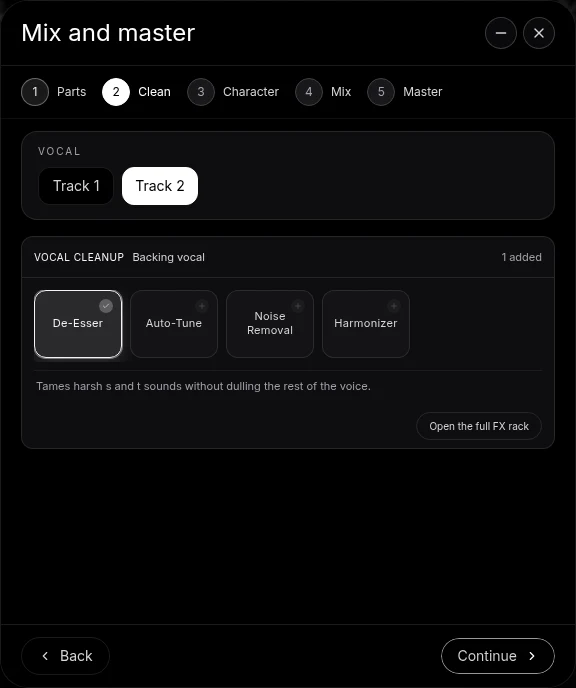
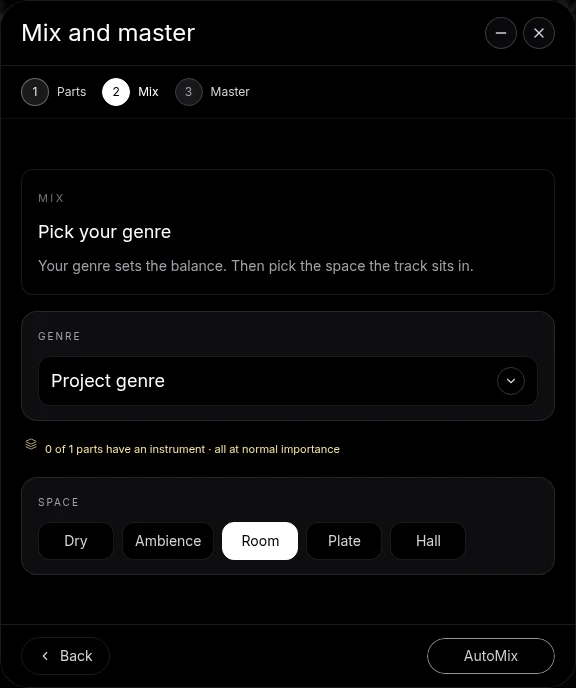
- Run Mix & Master. Tag each part on Parts, clean the vocal on Clean with De-Esser and Noise Removal, choose a Genre and Space on Mix and press AutoMix.
- Master it. Pause playback and press Master project. Veena adds Match EQ and Limiter to the master bus.
- Export the MP4. Open Export from your avatar and choose MP4. The picture leaves with the finished sound.
Why the order matters
Every effect reacts to what comes into it. A compressor fed with rumble pumps on the rumble. A de-esser fed with hiss hears hiss as sibilance. A limiter fed with a noisy room makes the room louder along with the song. So the chain runs from the bottom up: take away what nobody wants to hear first, then shape what remains, then make it loud.
In practice that means three layers:
- Remove: high-pass filter, Noise Removal, De-Esser.
- Shape: EQ for tone, a gentle Compressor for steadier level, a short reverb or a Space choice if the room sounds boxy.
- Finish: the mastering pair, Match EQ and Limiter, on the master bus.
Drag effect cards in the FX rack to put them in that order, and bypass each card in turn to hear exactly what it adds.
The raw video audio problems, and the fix for each
| What you hear | The fix in Veena |
|---|---|
| Rumble, thumps, traffic | Filter as a high-pass, or a low cut on the 8-Band EQ |
| Hiss, fans, air conditioning | Noise Removal |
| Sharp S and T sounds | De-Esser on the vocal |
| Voice buried under the instrument | Separate into Stems, then separate faders |
| Level jumps between loud and quiet | Compressor with a slow attack |
| Sound in one ear only | Utility: Mono and Balance |
| Thin and quiet next to other videos | Master project: Match EQ and Limiter |
Our remove background noise from video guide goes deeper on the second row, and clean audio for playthrough videos covers instrument videos specifically.
Clean the voice and the instrument as two parts
The single biggest upgrade for most raw music videos is pulling apart what one microphone recorded together. A phone in front of a singer-guitarist records one blended track: lift it and you lift the strumming with the voice. After Separate into Stems, the voice sits on the vocals stem and the guitar on the other stem, each with its own fader and FX rack.
Now the moves become simple. Put De-Esser and Noise Removal on the vocal only. Give the guitar a gentle low cut and a little compression. Set the vocal a few dB above the guitar. Veena mutes the original rather than deleting it, so you can switch back and compare whenever you like.
Let CoProducer do the mix
Every step above also works as a sentence. CoProducer reaches the same Mix & Master flow and the same effect cards, so you can describe the result the way you would to an engineer: "the vocal clear and in front, less room noise, the guitar warm behind it, master it for YouTube." It tags the parts, adds the cleanup, runs AutoMix and masters the song. Then refine with short follow-ups: "a little less reverb on the voice", "bring the guitar up 2 dB".
Export and post
Open Export from your avatar at the bottom of the left sidebar. MP4 appears whenever the project holds a video and renders the picture with your cleaned, mixed and mastered audio. For a separate audio file, choose 24-bit/48 kHz WAV or 320 kbps MP3. Exports are free on every plan, with no cap and no watermark, and you own what you make.
For the full map of video guides, start at clean up audio in a video. The AI mixing assistant and AI mastering pages cover the two finishing steps in depth.
The prompt to paste into CoProducer
Separate the audio from your clip first, then paste this:
"Clean up the raw audio from my video: remove the background noise and the low rumble, soften the sharp S sounds on the lead vocal, keep the instrument natural and behind the voice, add a short room, then master it loud and clean for YouTube."
Related reading: clean up audio in a video, remove background noise from video, clean audio for playthrough videos, mix a vocal cover video.
Try this in Veena
Clean up the raw audio from my video: remove the background noise and the low rumble, soften the sharp S sounds on the lead vocal, keep the instrument natural and behind the voice, add a short room, then master it loud and clean for YouTube.
Frequently asked questions
How do you clean raw video audio?
Import the clip into Veena, right-click it and choose Separate Audio, then open Mix & Master. Tag the parts, add Noise Removal and De-Esser on the Clean stage, press AutoMix and then Master project. Export an MP4 and the picture leaves with the cleaned sound. It all runs free in your browser, with no watermark on the export.
What is the first thing to fix in raw video audio?
Fix what masks everything else: low rumble and steady background noise. In Veena, add a high-pass Filter or a low cut on the 8-Band EQ to the extracted audio track, then Noise Removal. Listen with each card bypassed and enabled. Once the floor is quiet, the vocal and the instrument are much easier to balance and brighten.
Can I clean the voice and the instrument separately if they share one track?
Yes. Right-click the extracted audio in Veena and choose Separate into Stems. The voice lands on the vocals stem, drums and bass on their own stems, and guitars or keys on the other stem, all time-aligned. Each now has its own fader and FX rack, so you can clean the voice without dulling the instrument.
Does cleaning the audio change the video's timing?
No. Separate Audio in Veena puts the sound on its own track at the same position as the picture, and stem separation keeps every stem time-aligned with the original. Effects such as Noise Removal, EQ and the Limiter process the sound in place, so the cleaned audio stays in sync when you export the MP4.
Can CoProducer clean my video audio for me?
Yes. CoProducer reaches the same Mix & Master workflow and effect cards you use by hand in Veena. Ask for the result in plain words, such as a quieter room, a clear vocal and a loud, clean master. It tags the parts, adds the cleanup, mixes and masters the song, and every change stays editable.
Meet your personal music producer
Free, in your browser. Describe the song you want and CoProducer builds it with you.
Make music free