How to fix echo in video audio
Fix echo in video audio in Veena: separate the sound, cut the room's ringing frequencies, lower the room tone, dip the tails and choose a clean space.
To fix echo in video audio, you shrink the room you can hear without making the performance sound fake. In Veena that means separating the video's sound onto a track, cutting the frequencies the room makes ring, lowering the room tone, dipping the tails between phrases and choosing a clean, short space for the final mix. Then you export the MP4 with the tighter sound.
Veena is an AI DAW with a personal music producer built in. Describe the song you want and CoProducer builds it with you — beats, chords, melody, arrangement and mix — as real tracks you can edit, mix and export. Free, in your browser.
Echo is the most common complaint about home performance videos: the playing is good, but it sounds like it was filmed in a stairwell. This page explains what that sound actually is, the order of fixes that works best in Veena, and when the better move is a new audio take synced to the same picture. It is one job in the guide to clean up audio in a video.
What "echo" in a video really is
What people call echo is most often not a distinct repeat but room reverberation: the sound bouncing off walls, windows and floor and reaching the microphone a few milliseconds to a second after the direct sound. Three things make it worse in video:
- Camera distance. A camera across the room hears the reflections nearly as loudly as the instrument.
- Bare surfaces. Empty rooms, tiled kitchens and wooden floors reflect almost everything.
- Room modes. Every small room rings at a few particular frequencies. Certain notes boom or hang on while others die away cleanly.
That last point is the useful one. Because the worst of the echo sits at specific frequencies, much of it can be cut precisely.
How to fix echo in video audio, step by step
- Import the video. Drag it onto the Veena timeline or press Upload. MP4, M4V, MOV, WebM, MKV and AVI all import.
- Choose Separate Audio. Right-click the video clip. Its sound lands on a track you can process.
- Split the parts. Right-click the audio clip and choose Separate into Stems. Treating the vocal and the instrument separately lets you cut each one's ringing frequency without dulling the other.
- Cut the boom. Open the track's FX chain and add 8-Band EQ. Make a broad cut in the low mids, roughly 200 to 500 Hz, where small-room build-up lives. Listen for the point where the sound gets tighter without getting thin.
- Find the ring. Boost one band sharply and sweep it slowly while the recording plays. The frequency where the room suddenly howls is the room's ring. Turn that boost into a cut. Repeat for a second ring if you hear one.
- High-pass the rumble. Add Filter as a high-pass below the part's lowest note. Low-frequency room energy goes with it.
- Lower the room tone. On the vocal, open Mix & Master, tag it as Lead vocal and add Noise Removal in the Clean stage. It brings down the steady wash under the performance.
- Dip the tails between phrases. Right-click the track's volume fader and choose Automate. Draw the level down a few decibels in the gaps where the room rings out after a phrase, and back up as the next phrase starts.
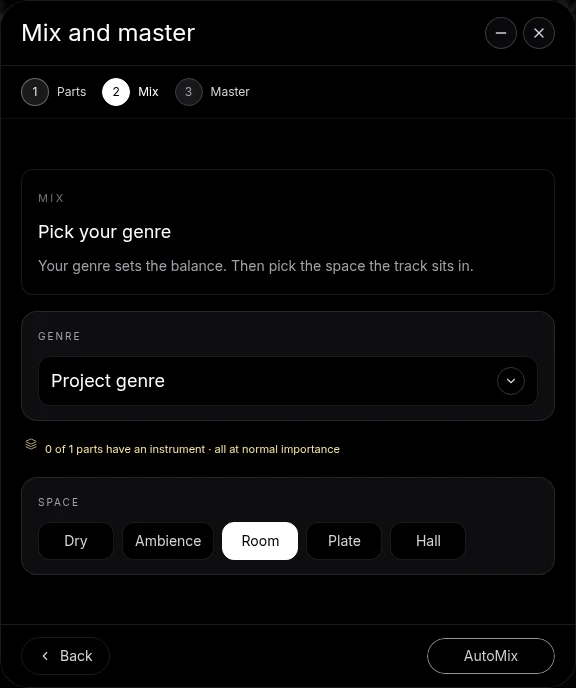
- Keep the mix dry. In the Mix stage, set Space to Dry before you press AutoMix, so no extra reverb stacks on the room you already have.
- Master and export. Pause, press Master project, then export an MP4 from Export.
Go easy on compression
A compressor makes quiet sounds louder relative to loud ones, and the room tail is a quiet sound. Heavy compression on an echoey recording brings the echo up. If you add a Compressor, use a gentle ratio after the EQ, and compare with it bypassed.
When a new take is the better fix
Cleanup reduces a room a lot. When the performance on camera is the one you want but the room overwhelms it, a stronger move is to keep the picture and replace the sound. Record the same performance again, close to a microphone in a softer room, or capture clean audio on a second device while you film. Line the new take up against the video's original sound in Veena, mute the camera audio and export. The full method is in how to sync audio and video for music covers, and recording in the browser is covered on the online recording studio page.
Stop the echo before you press record
- Film in the room with the most soft furnishings: a bedroom beats a kitchen.
- Hang a duvet or blanket behind the camera. The microphone hears the wall it faces most.
- Move the microphone closer, even if the camera stays where it is.
- Avoid the dead centre of a room and the corners, where room modes are strongest.
Related fixes
Echo often arrives with other problems. For a steady background sound, read how to remove background noise from video. For a buzz from an amp or lights, read how to remove hum from video audio. For the whole phone-camera picture, see how to improve phone video audio.
The prompt to paste into CoProducer
Open the studio, import the video, separate its audio and split it into stems, then paste this into the CoProducer panel with your own genre, tempo and key:
Tighten up this roomy performance video of a folk song at 76 BPM in A minor: cut the boomy low mids and the ringing frequency on the vocal and the guitar, lower the room tone with Noise Removal, keep the mix Dry with no added reverb, bring the vocal forward and centred, then master it gently with a Smooth limiter.
Related reading: clean up audio in a video · remove hum from video audio · improve phone video audio · sync audio and video for music covers
Try this in Veena
Tighten up this roomy performance video of a folk song at 76 BPM in A minor: cut the boomy low mids and the ringing frequency on the vocal and the guitar, lower the room tone with Noise Removal, keep the mix Dry with no added reverb, bring the vocal forward and centred, then master it gently with a Smooth limiter.
Frequently asked questions
How do I fix echo in video audio?
Veena is an AI DAW with a personal music producer built in. Describe the song you want and CoProducer builds it with you — beats, chords, melody, arrangement and mix — as real tracks you can edit, mix and export. Free, in your browser. Import the video, choose Separate Audio, cut the room's ringing frequencies with EQ, lower the room tone and keep the mix space Dry.
What causes echo in a music video's audio?
Hard, bare surfaces. Walls, windows and wooden floors reflect sound back to the microphone a fraction of a second after the direct sound, and a camera or phone placed far from the performer hears those reflections almost as loudly as the instrument. In Veena you tame the build-up with EQ and Noise Removal, then mix the cleaned recording.
Which Veena effects help with a roomy, echoey recording?
In Veena, use 8-Band EQ to cut the low-mid boom and any single ringing frequency, Filter as a high-pass for rumble, Noise Removal for the steady room tone, and volume automation to dip the ring-out between phrases. Then set Space to Dry in Mix & Master so no extra reverb lands on top.
Should I add reverb after removing echo?
Only a little, and only after the cleanup. Room echo is uneven: it rings on some notes and not others. Once Veena's EQ and Noise Removal have reduced it, a short, even space can sound better than an uneven real one. In Mix & Master, try Dry first, then Room or Ambience, and keep whichever matches the room the viewer sees.
Can I replace the echoey audio with a new recording in Veena?
Yes. Record a new take in Veena or import one from another device, line it up with the video's original sound by its clap or first strong note, mute the original and export an MP4. The picture keeps the performance and the new take carries the sound. Veena exports with no watermark on any plan.
Meet your personal music producer
Free, in your browser. Describe the song you want and CoProducer builds it with you.
Make music free