How to mix a vocal cover video
Mix a vocal cover video for free: split your voice from the music with stems, de-ess, clean and tune it, sit it on the backing, then master it in Veena.
How do you mix a vocal cover video?
To mix a vocal cover video, put your voice on its own track and give it the treatment a record would: in Veena, separate the clip's audio, split it into stems, clean and de-ess the vocal, add light tuning if it helps, sit it on top of the music, master it and export the MP4. It is free, in your browser.
Veena is an AI DAW with a personal music producer built in. Describe the song you want and CoProducer builds it with you — beats, chords, melody, arrangement and mix — as real tracks you can edit, mix and export. Free, in your browser.
A vocal cover video is usually one of two recordings: you singing over an instrumental from speakers, or you singing while you play guitar or piano. Either way, one phone mic catches everything, and the voice ends up fighting the music for the same space. Separation turns that one track into two, and from there the vocal chain is the same one engineers use on records.
Mix a vocal cover video, step by step
- Import the video. Drag it onto the arrangement or press Upload. Veena opens MP4, M4V, MOV, WebM, MKV and AVI.
- Separate the audio. Right-click the video clip and choose Separate Audio.
- Split it into stems. Stop playback, right-click the audio and choose Separate into Stems. Your voice lands on the vocals stem; guitar or piano lands on other, and a full backing spreads across drums, bass and other.
- Open Mix & Master and tag the voice. On Parts, set the vocals stem to Lead vocal and its importance high.
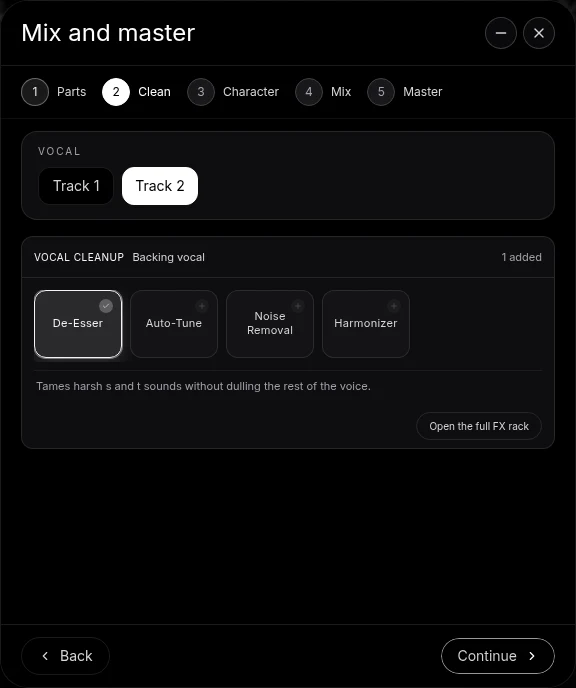
- Clean it. On Clean, add Noise Removal for room noise, De-Esser for sharp S and T sounds, and Auto-Tune if you want gentle pitch control.
- Choose a Character. Audition the choices in the song and keep the one that suits the voice.
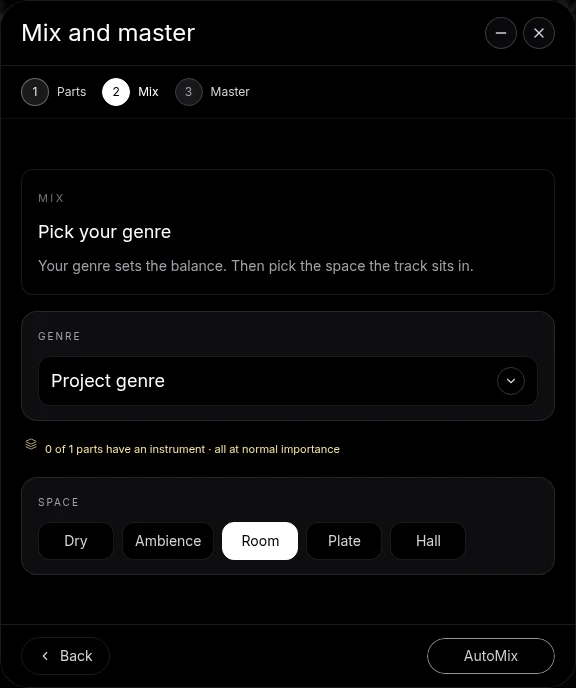
- Mix. Choose a Genre and a Space on Mix. Plate or Room suits most covers. Press AutoMix.
- Master and export. Pause playback, press Master project, then Export and choose MP4.
The vocal chain, in order
| Stage | What it does | In Veena |
|---|---|---|
| High-pass | Removes rumble and mic handling under the voice | Filter on the vocal's FX |
| Noise removal | Clears hiss and room tone between phrases | Noise Removal, on the Clean stage |
| De-essing | Softens sharp S and T sounds | De-Esser, on the Clean stage |
| Tuning | Pulls pitch toward the song's key | Auto-Tune, natural style, low amount |
| Tone | Adds presence, trims boxiness | 8-Band EQ |
| Level | Keeps quiet words audible and loud notes in check | Compressor |
| Space | Joins the voice to the music | Plate or Room on the Mix stage, or Reverb |
The order matters: clean first, then shape, then add space. A de-esser after the reverb would chase the reverb's echoes of every S; a compressor before the noise removal would lift the noise in every gap.
Harmonies and doubles
The Harmonizer on the Clean stage adds pitch voices to a part. Used lightly in a final chorus, it lifts a cover the way a backing vocal would. For real harmonies, record them yourself: press Record in Veena, sing the part on a new track while the video plays, then tag that track as Backing vocal on Parts. The Vocal choice on Clean and Character lets you give each voice its own treatment, and backing voices often take more width and space than the lead.
When the backing track needs replacing
If the music behind you is thin, or you sang unaccompanied, CoProducer can build a backing under your voice. It measures the vocal's tempo and phrasing first, then writes drums, bass and chords to fit, as real tracks you can edit. That is how a phone take of a song you love becomes a full cover. The detail is in make a backing track for a cover video.
Covers of someone else's song still belong to its writers; check how your platform handles covers before you post.
Let CoProducer mix it
Ask CoProducer to "split this, clean and de-ess the lead vocal, add light natural Auto-Tune in the song's key, keep it close and in front, and master it for YouTube". It uses the same Mix & Master flow and effect cards. Then refine in sentences: "a little less plate", "the guitar down 2 dB".
For a voice and guitar caught on one phone, see balance vocals and guitar recorded on one mic, and for sharp consonants in detail, de-ess vocals in a video. Every guide in the series is linked from clean up audio in a video, and the AI mixing assistant page covers the mix stage in depth.
Export and post
Export from your avatar, choose MP4, and the picture leaves with the mixed and mastered vocal. Free on every plan, with no cap and no watermark.
The prompt to paste into CoProducer
Separate the audio from your clip first, then paste this:
"Mix my vocal cover video: split the audio into stems, clean the lead vocal with noise removal and a de-esser, add light natural Auto-Tune in the song's key, keep the vocal close and a few dB above the music, give it a short plate, then master it loud and clean for YouTube and Reels."
Related reading: clean up audio in a video, balance vocals and guitar recorded on one mic, de-ess vocals in a video, make a backing track for a cover video.
Try this in Veena
Mix my vocal cover video: split the audio into stems, clean the lead vocal with noise removal and a de-esser, add light natural Auto-Tune in the song's key, keep the vocal close and a few dB above the music, give it a short plate, then master it loud and clean for YouTube and Reels.
Frequently asked questions
How do you mix a vocal cover video?
Import the video into Veena, right-click it and choose Separate Audio, then Separate into Stems so your voice lands on the vocals stem. In Mix & Master, tag it as Lead vocal, add De-Esser and Noise Removal on the Clean stage, choose a Character, press AutoMix and Master project, and export the MP4. It is free.
How do I separate my voice from the guitar in a cover video?
Right-click the extracted audio in Veena and choose Separate into Stems. Your voice lands on the vocals stem and the guitar or piano on the other stem, time-aligned with the original. Each gets its own fader and FX rack, so you can lift and clean the voice without lifting the strumming.
Should I use Auto-Tune on a cover video?
Lightly, if at all. In Veena, the Clean stage of Mix & Master offers Auto-Tune on each vocal, and the clip menu offers it too. Set the key and scale to the song, start on the natural style and keep the amount low enough that the voice still sounds like you. Compare it bypassed and enabled.
How loud should the vocal be in a cover video?
In front. A vocal cover is about the voice, so in Veena tag it as Lead vocal on Mix & Master's Parts screen and set its importance high, then check the busiest chorus. If every word reads clearly over the music, the balance is right. A short plate or room then joins the voice to the music.
Can CoProducer mix my vocal cover?
Yes. After Separate Audio, ask CoProducer in Veena to split the audio, clean and de-ess the lead vocal, add light Auto-Tune in the song's key and master the result. It reaches the same Mix & Master flow and effect cards you use by hand, and it can build a fresh backing track under your voice too.
Meet your personal music producer
Free, in your browser. Describe the song you want and CoProducer builds it with you.
Make music free