How do I fix latency when recording?
How do I fix latency when recording? Record with wired headphones, set the smallest audio buffer that plays cleanly, and calibrate. In Veena, Latency calibration measures your setup's delay once and moves every take earlier by exactly that much, so your vocal or guitar lands on the beat you played it to. It is free, and it runs in your browser.
Veena is an AI DAW with a personal music producer built in. Describe the song you want and CoProducer builds it with you — beats, chords, melody, arrangement and mix — as real tracks you can edit, mix and export. Free, in your browser.
Fix recording latency in Veena, step by step
- Use wired headphones. Bluetooth headphones add their own delay to everything you hear. A wired pair, or the headphone output of your interface, removes it.
- Pick the right input. Open Settings from your avatar in the left sidebar, then Studio Settings → Audio Settings, and choose your mic under Input Device (Microphone).
- Set the buffer. In the same panel, set Audio Buffer Size. Smaller buffers mean less delay; larger ones mean steadier playback. Start at 256 or 512 and use the smallest setting that plays your project without crackles.
- Open Calibrate. Press Record in the transport bar and open Calibrate in the Record panel. It reads "Ready" or "Not set up".
- Run Latency calibration. With playback paused, run Latency calibration. Veena measures your system's delay and moves each recording earlier by it. Run Volume calibration too while you are there.
- Record a test take. Switch the metronome on, record four bars of claps or a few words on the beat, and listen back with the drums. The take should sit on the grid.
- Recalibrate after any change. A new microphone, interface, headphones or buffer size changes the delay; run Latency calibration again.
Buffer size and delay
| Audio Buffer Size | Label in Veena | Delay |
|---|---|---|
| 128 samples | Low latency, may cause audio dropouts | about 3 ms |
| 256 samples | Balanced | about 6 ms |
| 512 samples | Recommended | about 12 ms |
| 1024 samples | High stability | about 23 ms |
| 2048 samples | Maximum stability | about 46 ms |
Closing video calls and heavy browser tabs frees headroom, so a smaller buffer plays cleanly.
Other fixes for late or uneven takes
- You hear yourself late while singing. Switch Monitoring on in the Record panel only if you need it, keep the buffer small, and use wired headphones.
- A take you already recorded is late. It is a normal clip: drag it earlier with Grid Snap off until it sits with the drums.
- Takes land late again after a change. Your setup changed; run Latency calibration again.
- Clicks or dropouts while recording. Raise the buffer one step, then recalibrate.
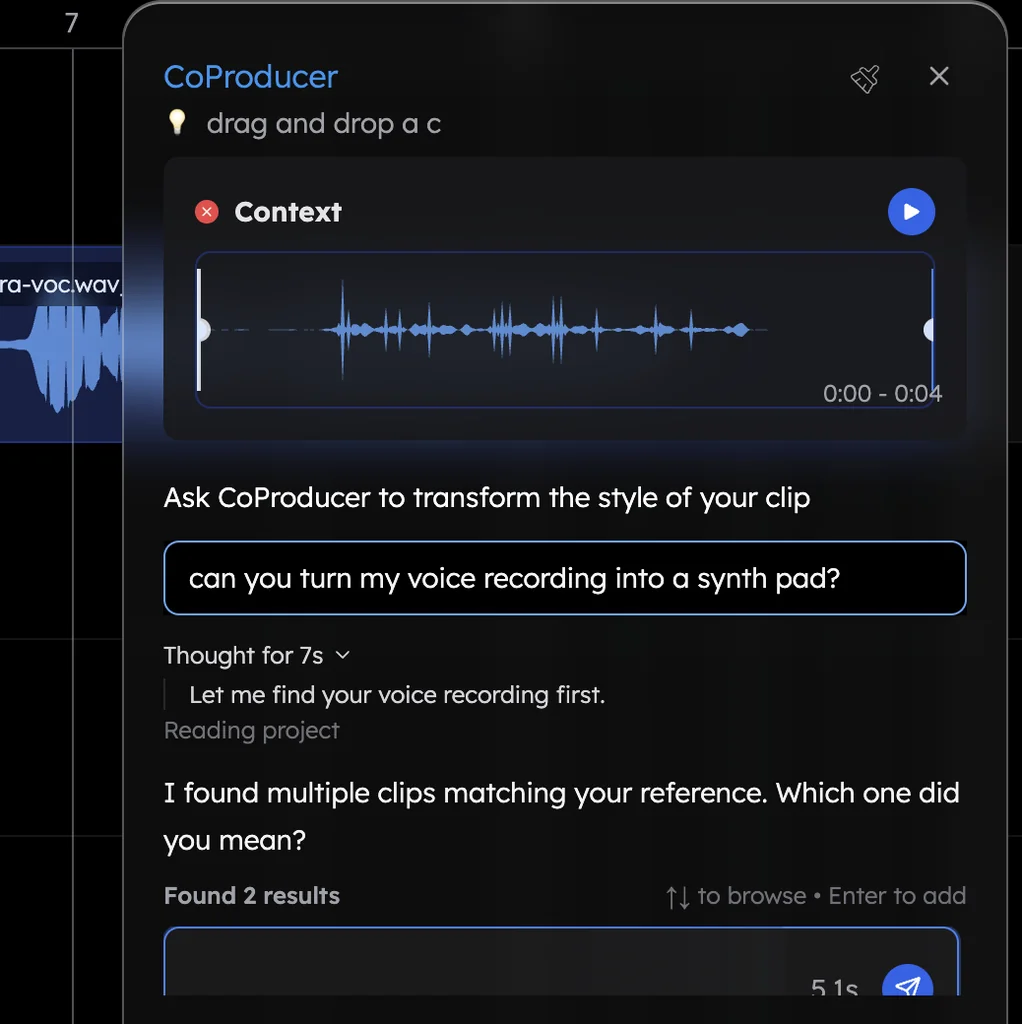
Once the take is on the beat, drag it into the CoProducer panel and ask for the song around it. CoProducer measures your tempo and phrasing and writes every new part to fit your performance.
What's free
- Recording: microphone input, Volume and Latency calibration, monitoring, a 1 or 2-bar count-in and loop recording, on every plan.
- CoProducer: a daily allowance of requests to build the song around your take.
- The studio: timeline, mixer and 17 built-in effects, with up to 5 projects at a time.
- Export: WAV, MP3, MIDI and stems, with no cap and no watermark.
Veena Pro, $20 a month, removes the daily request cap and unlocks the premium models.
The full recording workflow is in record your voice for a song and recording in Veena; playback problems are in audio and sound issues, and the quick recorder is the voice recorder online. Every other answer is in the Veena help centre.
Related reading: Record your voice for a song · Recording in Veena · Audio and sound issues
Try this in Veena
Build a 98 BPM neo-soul groove in E-flat major around my vocal take: Jazz kit drums with a laid-back snare, Electric Piano chords with ninths and a Round Bass line that follows my phrasing. Keep my vocal on the beat it was sung.
Frequently asked questions
How do I fix latency when recording?
In Veena, record with wired headphones, set the smallest Audio Buffer Size that plays cleanly, then open Calibrate in the Record panel and run Latency calibration. Veena moves each take earlier by your system's measured delay, so it lands on the grid. Run it again whenever you change microphone, interface or headphones.
Why is my recording out of sync with the beat?
Every computer adds a small delay between the sound you hear and the sound it records, from the audio buffer, the interface and the headphones. Bluetooth adds the most. Veena's Latency calibration measures that delay once per setup and shifts every take by it, so your vocal sits where you sang it against the beat.
What buffer size should I use for recording?
The smallest that plays without crackles. In Veena, open Studio Settings, then Audio Settings, and choose Audio Buffer Size from 128 samples, about 3 ms, to 2048, about 46 ms; 512, about 12 ms, is recommended. Step up one size if playback breaks up, then run Latency calibration again.
Can I fix latency on a take I already recorded?
Yes. In Veena, a take is a normal audio clip: drag it earlier on the timeline with Grid Snap off until it sits with the drums, or zoom in and line its first transient up with the beat. Then run Latency calibration so the next take lands right on its own.
Meet your personal music producer
Free, in your browser. Describe the song you want and CoProducer builds it with you.
Make music free