Edit audio in Veena
Edit audio in Veena by moving, splitting, stretching or processing a recording on the timeline, with Waveform controls and CoProducer for precise changes.
Veena is an AI DAW with a personal music producer built in. Describe the song you want and CoProducer builds it with you — beats, chords, melody, arrangement and mix — as real tracks you can edit, mix and export. Free, in your browser.
Edit audio in Veena, step by step
- Import your recording. Press Upload or drag a file onto the arrangement. Select its clip to work on that take.
- Move it to the right bar. Drag the clip with Grid Snap set for the spacing you want. Keep the other parts playing when checking the placement.
- Split the take. Turn on Toggle Split Mode (C) and click the clip where the cut should fall. Turn split mode off when you want to move the resulting pieces.
- Repeat a phrase. Select the clip and use Ctrl+C then Ctrl+V, or right-click and choose Duplicate Selected Clip. On a Mac use Cmd for the clipboard shortcuts.
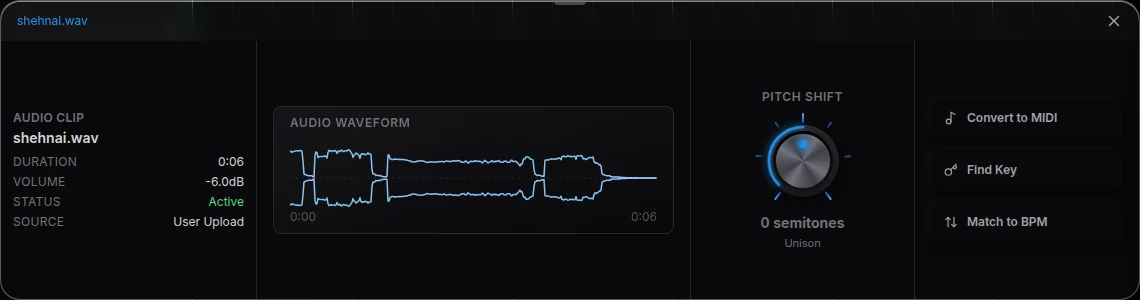
- Stretch or match tempo. Drag its right edge to time-stretch while preserving pitch, or open Waveform and use Match to BPM. The tempo dialog lets you correct Original BPM before matching the project.
- Change pitch. In Waveform, turn Pitch Shift for a semitone change. Right-click and choose Reverse Audio when you want the sound to play backwards.
- Set processing on the track. Open its FX button for effects. The clip’s own volume can balance a loud take against quieter clips on the same track.
Use the clip menu for bigger operations
Right-click an audio clip for Auto-Tune or Separate into Stems, alongside Duplicate, Mute and Delete. Stem separation creates separate vocals, drums, bass and other tracks beside the original. On a phone, hold and release the clip to open the same menu as a sheet.
Tell CoProducer which audio to change
Drag the clip into the CoProducer panel on a laptop, or name its track and bars in your message. Try "reverse the last guitar phrase into the chorus" or "chop my recording into a new groove, keeping the original take elsewhere." CoProducer works with the recording already in the project, and the results are real clips you can move and process again.
Use Undo for a change you do not want, and duplicate the project before trying a different arrangement of a finished song.
See the audio editor page for this capability in the full Veena studio.
Release history: Uploaded clips stay where you move them explains the change introduced on 2026-08-07.
Related reading: Veena help centre, Mix & Master, CoProducer edits, Release note.
Try this in Veena
Reverse the last guitar phrase into the chorus, pitch the new clip up two semitones, and leave the earlier verse take alone.
Frequently asked questions
How do I edit an audio recording in Veena?
Select an audio clip in Veena and use its Waveform panel for pitch and tempo controls, or its clip menu for actions such as Reverse and stem separation. Move and resize the clip in the arrangement, and use Open Control Panel for its own level and pan. CoProducer can make a targeted change in words.
Can I change a recording’s tempo without changing pitch in Veena?
Yes. In Veena, drag an audio clip’s right edge to time-stretch it while preserving pitch, or use Match to BPM in its Waveform panel. Check Original BPM in the tempo dialog before matching the project. Pitch Shift is a separate control when you deliberately want to move the recording up or down.
Can CoProducer edit the audio I recorded in Veena?
Yes. CoProducer can work on your recorded or imported audio in Veena, including moving, slicing, reversing, pitch-shifting, stretching and re-voicing it. Name the track and bars or drag the clip into the panel as context. The resulting audio remains on the editable timeline beside the other musical parts.
Meet your personal music producer
Free, in your browser. Describe the song you want and CoProducer builds it with you.
Make music free