Automation in Veena
Automation in Veena changes a track or master control over the song’s bars, using a curve you draw from the control’s Automate menu.
Veena is an AI DAW with a personal music producer built in. Describe the song you want and CoProducer builds it with you — beats, chords, melody, arrangement and mix — as real tracks you can edit, mix and export. Free, in your browser.
Automation in Veena, step by step
- Choose a control. Start with a track’s volume fader, its pan control, or an eligible effect knob. Set the resting value before drawing its movement.
- Right-click and choose Automate. For a control that already has a lane, choose Edit automation instead. The existing lane opens rather than creating a duplicate.
- For a track, find the curve on its clips. Press the lane chip’s edit control to arm drawing. The chip shows which control the curve affects; its arrows switch between several lanes.
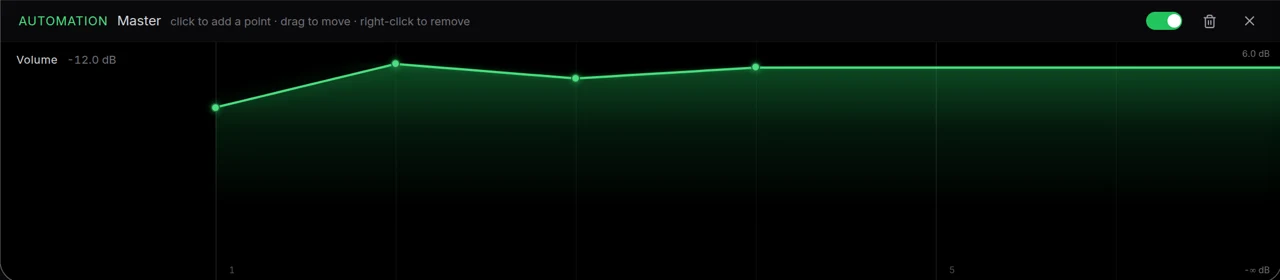
- Draw the movement. Click to add a point, drag a point to change its time and value, and right-click a point to remove it. The horizontal position follows the arrangement’s bars and grid.
- Leave drawing mode. Press Escape or click away from the clip. Its ordinary move and resize gestures work again.
- For the master, use the lane panel. The master has no clips, so its curve opens in a panel with the same point gestures. Use the master lane’s switch to compare it with the fixed control.
- Remove a lane when you no longer need it. Right-click its original control and choose Remove automation.
The curve belongs to the track
Automation lives on the track, so it holds its place when you rearrange clips. Each clip shows the curve at its bars, and the track lane also shapes the sound between clips. Use the lane’s points to place a musical rise or effect change at the section you want.
Make a musical change
Draw a gentle volume rise into the chorus, widen a pad with an eligible stereo control, or build movement with a filter knob. A few deliberate points make the intent easier to hear than a crowded curve. Check the transition with the other tracks playing, because a soloed part does not show how the movement changes the mix.
On your phone, existing curves can be edited through touch controls on the clip: drag to shape a point and hold a point to remove it. A laptop’s right-click menu is the direct way to create a lane from a control.
See the AI mixing assistant page for this capability in the full Veena studio.
Related reading: Veena help centre, Mix & Master, CoProducer edits, Release note.
Try this in Veena
Build an 8-bar rise into the chorus in my 100 BPM A minor song, with the pad opening gradually and the bass staying steady.
Frequently asked questions
How do I automate a control in Veena?
Right-click an eligible level, pan or effect control in Veena and choose Automate. Draw points in its automation lane across the song’s bars, then play the arrangement to hear the change. Use the visible lane controls to edit the curve; the track, clip and master guides explain where each kind applies.
How does automation stay in place when I rearrange Veena clips?
Automation lives on the track in Veena, so it holds its place when you rearrange clips. The curve follows the arrangement’s bars, and each clip overlay shows its slice of that track lane. Draw a rise into the chorus or shape an effect over a section, then edit its points directly on the timeline.
How do I compare or remove automation in Veena?
Use the master lane’s switch to compare its curve with the fixed setting in Veena. To edit it again, right-click the same control and choose Edit automation. To remove the curve, choose Remove automation. Ordinary clip gestures return when you leave the overlay’s drawing mode with Escape or a click away.
Meet your personal music producer
Free, in your browser. Describe the song you want and CoProducer builds it with you.
Make music free