Live recording waveform in Veena
Live recording waveform in Veena, released on 2 August 2026, shows your take as you perform and gives you a visible place to aim it before recording begins.
Veena is an AI DAW with a personal music producer built in. Describe the song you want and CoProducer builds it with you — beats, chords, melody, arrangement and mix — as real tracks you can edit, mix and export. Free, in your browser.
Live recording waveform in Veena: what changed
The transport’s Record control opens one recording-options window. It contains the input choice, calibration and the start action. Before an audio take, a red aim box shows its track and start position, or the loop region when looping is active. You can move that target before committing to the performance.
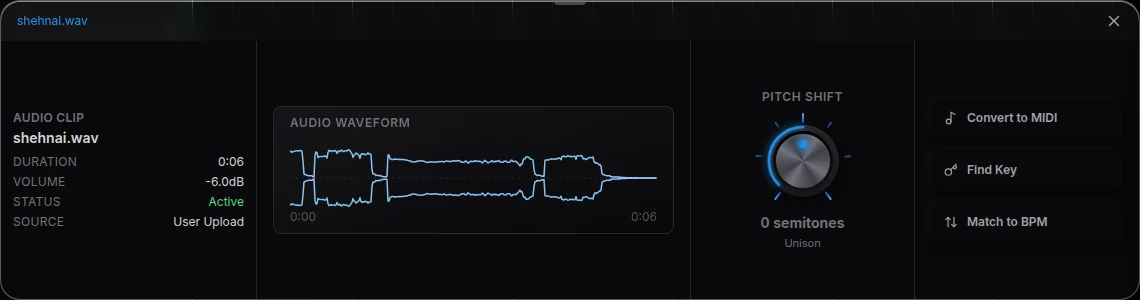
During the take, the waveform draws on the recording strip as sound arrives. When you stop, the result is an ordinary audio clip. The live drawing and the finished clip describe the same recording, so you can follow the performance while it is happening and see it on the timeline afterwards.
Try it in your song
- Open Record. Choose Audio in the recording options and select your microphone.
- Check the target. Set the playhead and track, then inspect the red recording box. Move it if the take belongs somewhere else.
- Calibrate. Open Calibrate for Volume calibration and Latency calibration, and choose Monitoring if you want to hear the input.
- Record the idea. Press Start recording, perform through the count-in and use Stop Recording to finish.
In your editable project
Recording and arranging stay in one session. Split a good phrase out of the take, repeat it through a chorus, or ask CoProducer to build supporting parts around it. On a phone today, a tap on Record starts a take and a hold opens its input options; the help article explains both surfaces.
Related reading: Veena help centre, what’s new in Veena, Follow the live recording waveform in Veena guide.
Try this in Veena
Build a 16-bar song around my recorded melody at 90 BPM in A minor, with warm piano, drums and bass that leave room for my phrasing.
Frequently asked questions
What changed for recording in Veena?
Veena shows a live waveform while you record and lets you choose the target before the take starts. Use the record controls to select audio or MIDI, then record into the selected track or a new one. The result is an editable project clip you can keep, trim or build around with CoProducer.
What changed for recording in Veena?
Veena added a real-time waveform while an audio take records, a visible target before it starts, and one record-options window containing calibration and the start action. The finished take becomes a normal editable audio clip. You can place it in the arrangement and ask CoProducer to build musical parts around it.
Can I edit the recording afterwards in Veena?
Yes. A recorded take in Veena is an ordinary audio clip on the timeline. Move it, split it, change its pitch or tempo, and process its track with effects. CoProducer can work with that same take, while the recording help explains input choice, calibration, monitoring and the current phone recording flow.
Meet your personal music producer
Free, in your browser. Describe the song you want and CoProducer builds it with you.
Make music free